How to Assign a Database User to a Database in CloudStick
Overview
Creating a database user is only half the job — for an application to actually read from or write to a database, that user must be granted access to it with the right set of privileges. CloudStick's visual database manager lets you assign a user to a database and define exactly what it can do, all from the dashboard with no SQL GRANT statements or phpMyAdmin required.
This guide walks you through opening the Databases section, using the Grant User option on the target database, selecting the user, and choosing the privileges and host before saving the changes.
You need an existing database and database user before assigning one to the other. If you have not created them yet, see How to Create a Database in CloudStick and How to Create a Database User in CloudStick first.
Step 1: Log In to CloudStick
Everything starts from your CloudStick account, where all of your connected servers are managed in one place.
Open dash.cloudstick.io and log in with your CloudStick credentials.
You'll land on the main Dashboard, which lists every server connected to your account.
Step 2: Select Your Server
Databases and their users are managed per server, so the first step is opening the server where your database is hosted.
From the Dashboard, find the server that hosts the database in the server list.
Click Manage on that server's card to open its server panel.
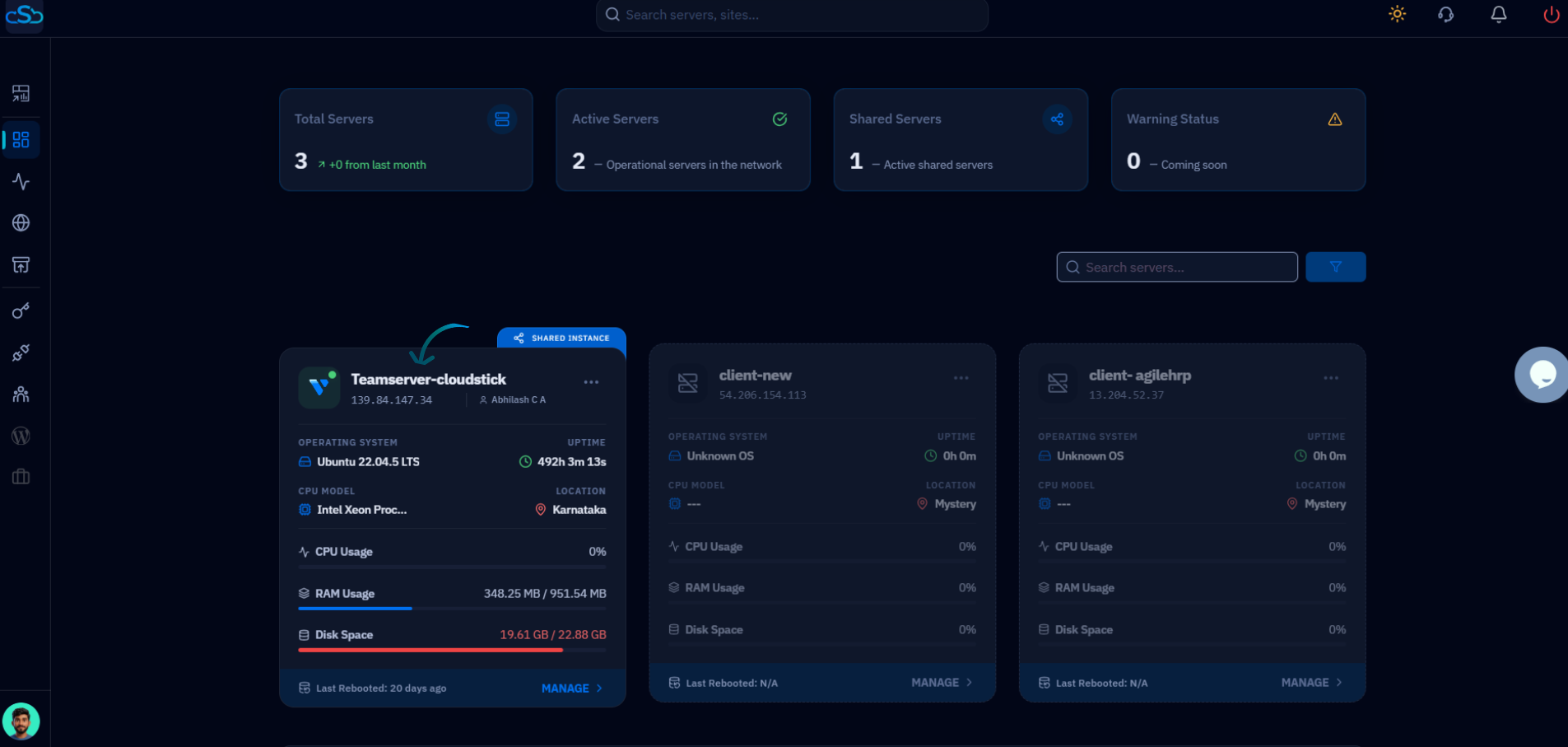
Fig. 01 — CloudStick Dashboard showing connected servers. Click Manage on the server you want to work with.
Step 3: Open the Databases Section
Inside the server panel, the Databases section lists every MySQL database on the server along with the users attached to each. You reach it from the server panel's left-hand navigation.
In the left-hand navigation of the server panel, click the Databases icon.
This opens the Databases page, showing all databases hosted on the server.
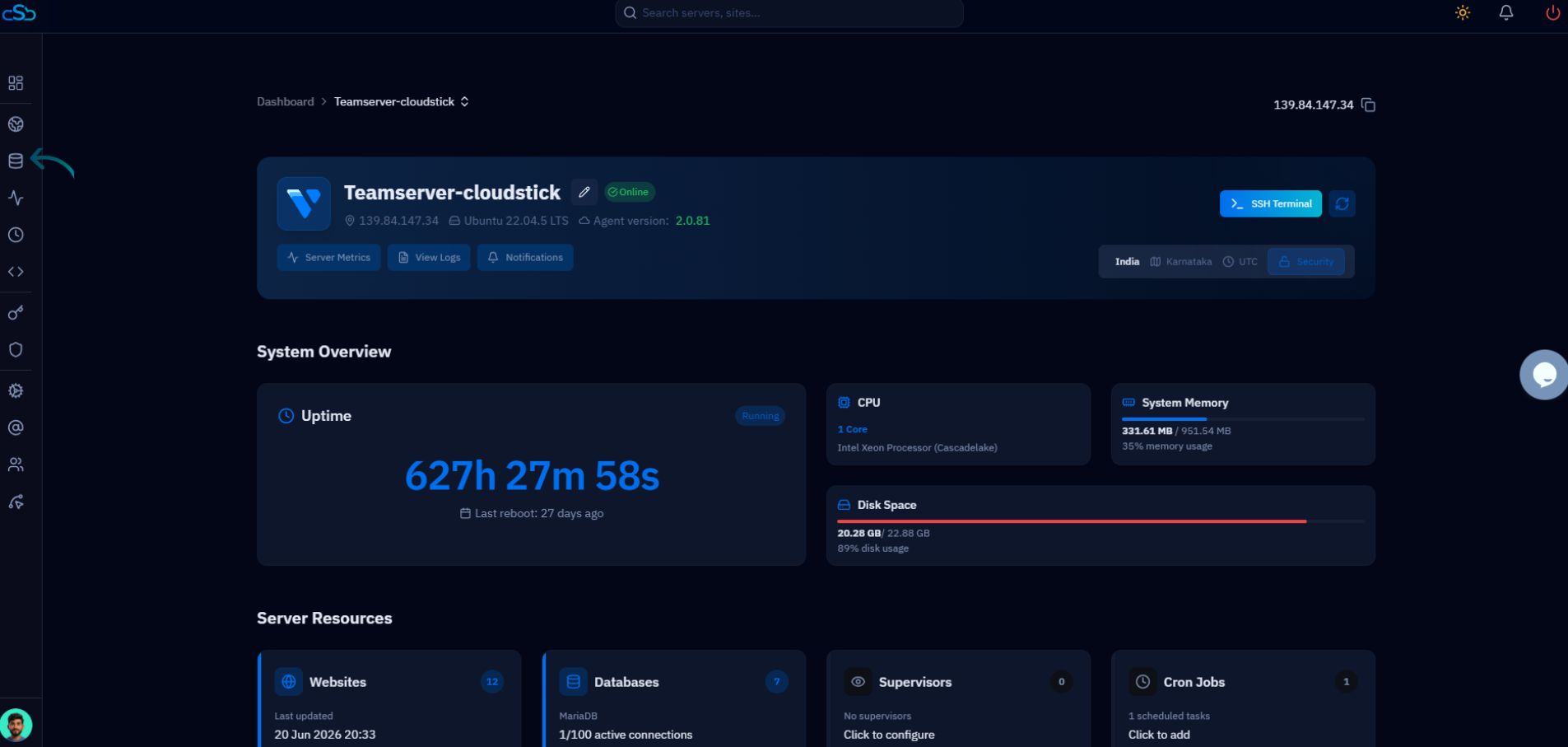
Fig. 02 — Server panel with the Databases icon highlighted in the left-hand navigation.
Step 4: Find the Database & Click Grant User
Each database row has its own Grant User action, which is how you attach a user to that specific database.
Locate the database you want to assign a user to in the list.
On that database's row, click Grant User to open the assignment form.
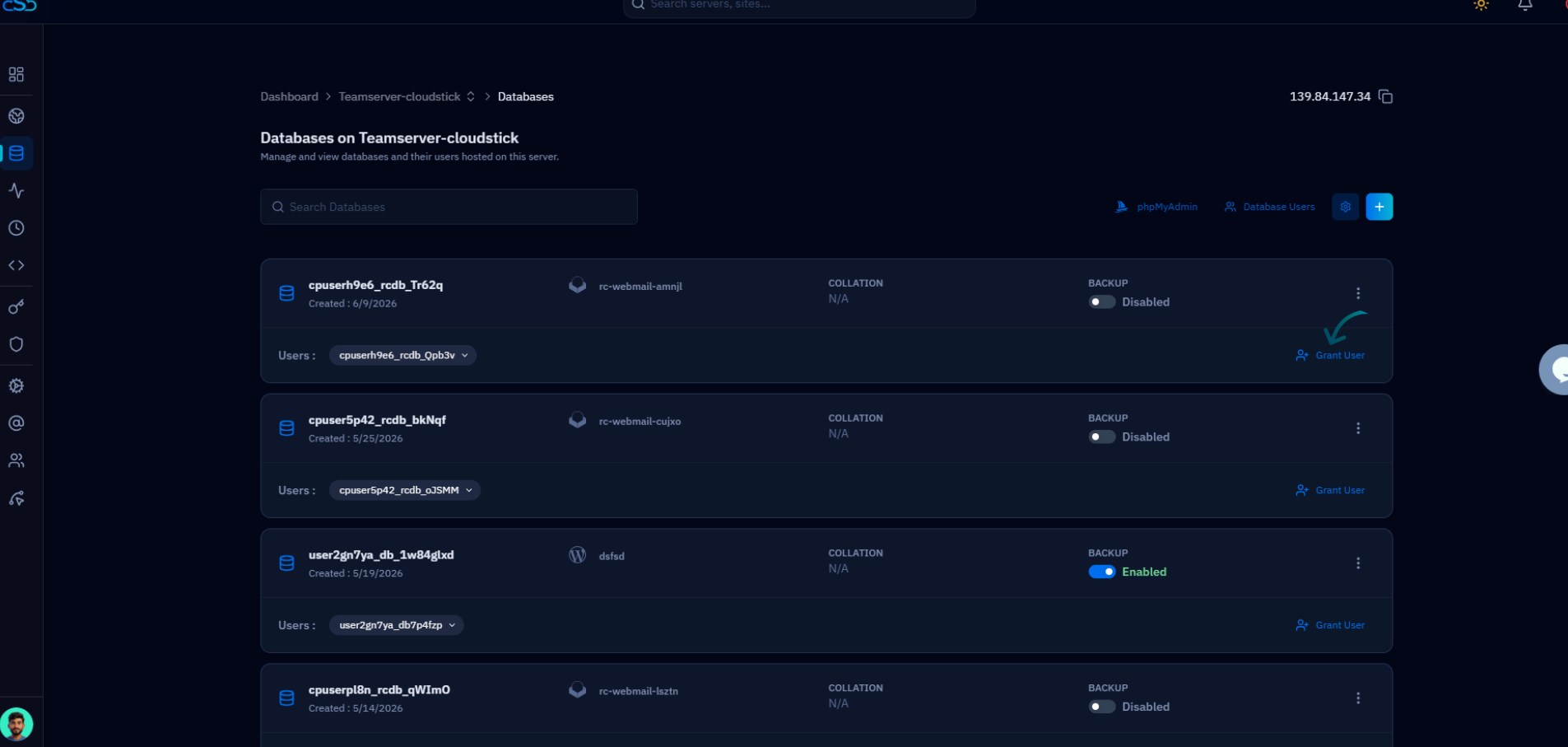
Fig. 03 — The Databases page with the Grant User link highlighted on a database row.
Step 5: Select the User & Set Permissions
The Add User form lets you choose which user to attach, exactly what it is allowed to do, and where it may connect from.
Select User: Choose the database user you want to assign from the list of existing users.
Privileges: Select the privileges the user should have — Read, Write, Update, Delete, or All Privileges for full access.
Host: Choose where the user may connect from — localhost for same-server connections, or remote if the application connects from another machine.
Grant only the privileges the application actually needs. Following the principle of least privilege keeps your database more secure — choose All Privileges only when full access is genuinely required.
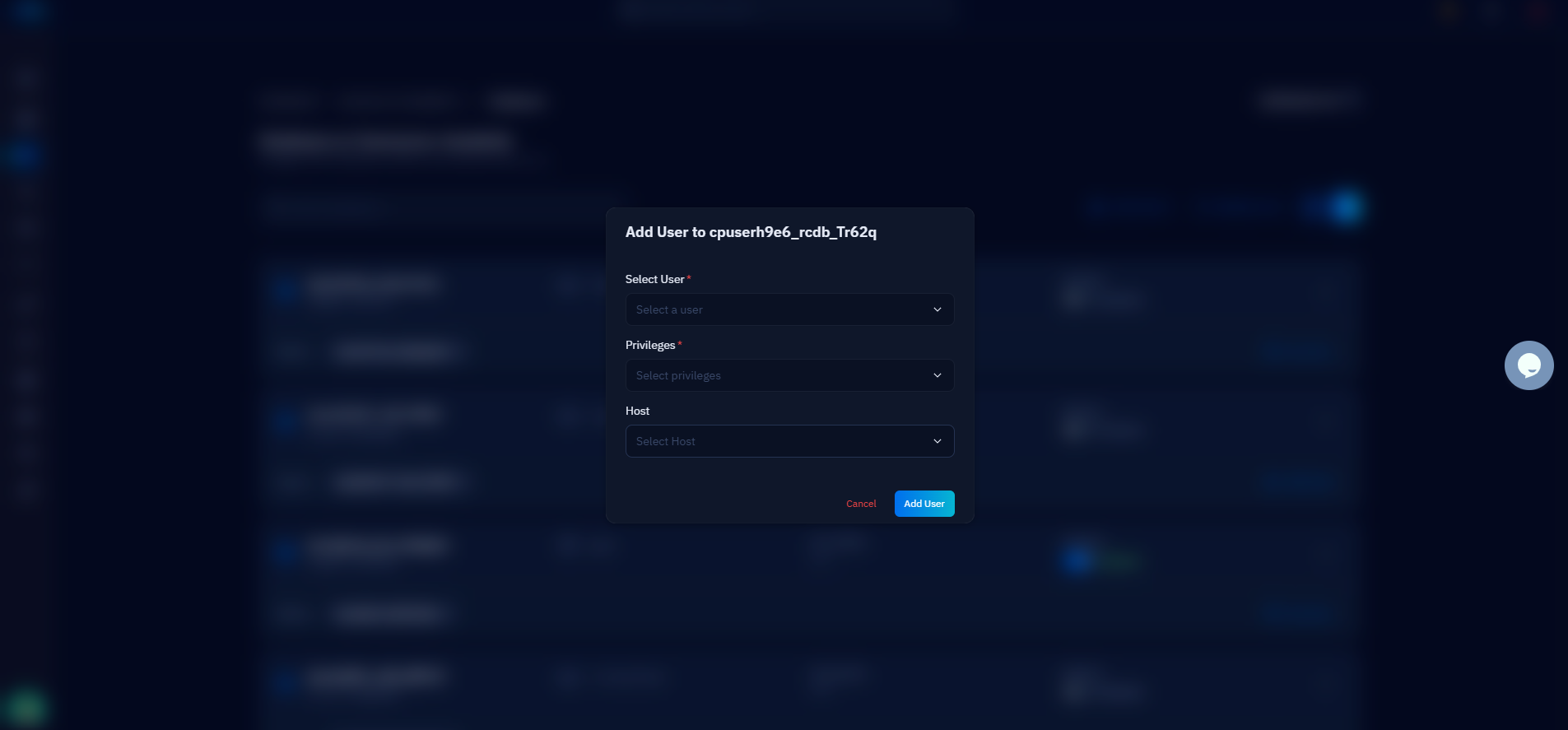
Fig. 04 — The Add User form showing the Select User, Privileges, and Host fields.
Step 6: Save the Changes
A single click applies the assignment and grants the chosen user access to the database.
Once the user, privileges, and host are set, click the Add User button to apply the changes.
The user is now attached to the database and appears under its Users list on the Databases page.
The user can now connect to the database with the privileges you assigned. Update your application's connection settings with this user's credentials if you have not already.