How to Change a Database User Password
Overview
Rotating database credentials is a routine part of server maintenance — whether you are responding to a potential security incident, onboarding a new team member, or simply enforcing a password policy. CloudStick lets you change any database user's password directly from the dashboard without touching the command line or MySQL directly.
This guide walks you through navigating to the Database Users list, locating the user, entering a new password, and saving the change. The update takes effect immediately, so make sure you have your application configuration ready to update at the same time.
Changing a database user password will immediately break any application or connection currently using the old password. Update your application's environment variables or configuration file with the new password right after saving the change.
Step 1: Open Database Users
Database users are managed from the Databases section of your server panel. You can reach the user list directly from the Databases page or from a website's App-Database page.
From the CloudStick dashboard, open your server and navigate to Databases in the left-hand navigation.
Click Database Users in the top navigation of the Databases page to switch to the user list view.
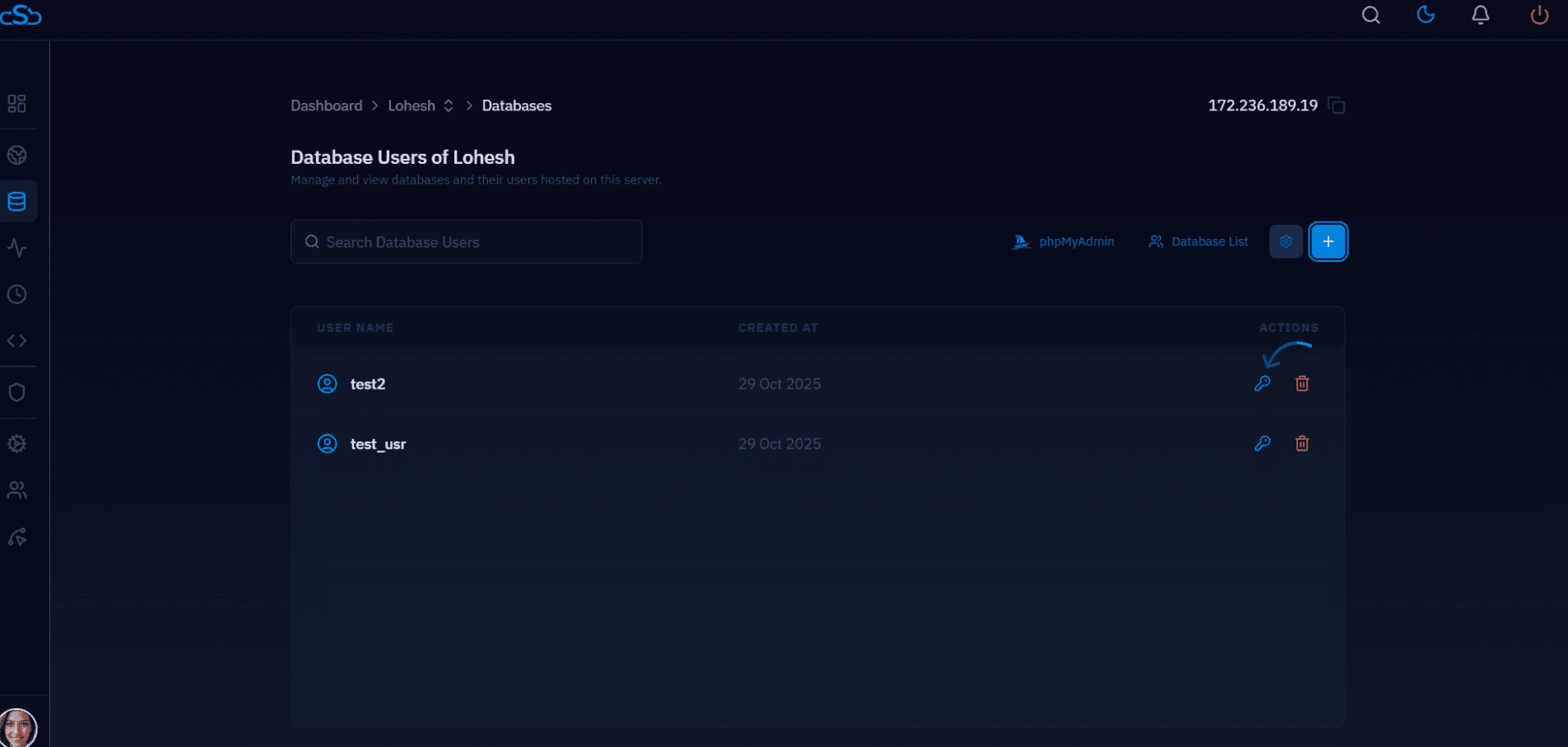
Fig. 01 — Database Users list showing all users on the server, with the change password (key) icon in the Actions column.
Step 2: Select the User
The Database Users list shows every user created on the server, along with the date they were created and an actions column. Identify the user whose password you need to change and trigger the password update from the actions column.
Locate the database user in the list (e.g. test2 or test_usr).
Click the key icon in the Actions column next to that user to open the Change Password dialog.
Step 3: Enter the New Password
A Change Password dialog will appear for the selected user. Enter and confirm the new password here.
In the New Password field, enter your new password.
In the Confirm Password field, enter the same password again to confirm it.
Use a strong password of at least 16 characters, mixing uppercase, lowercase, numbers, and symbols. Avoid reusing passwords across multiple database users.
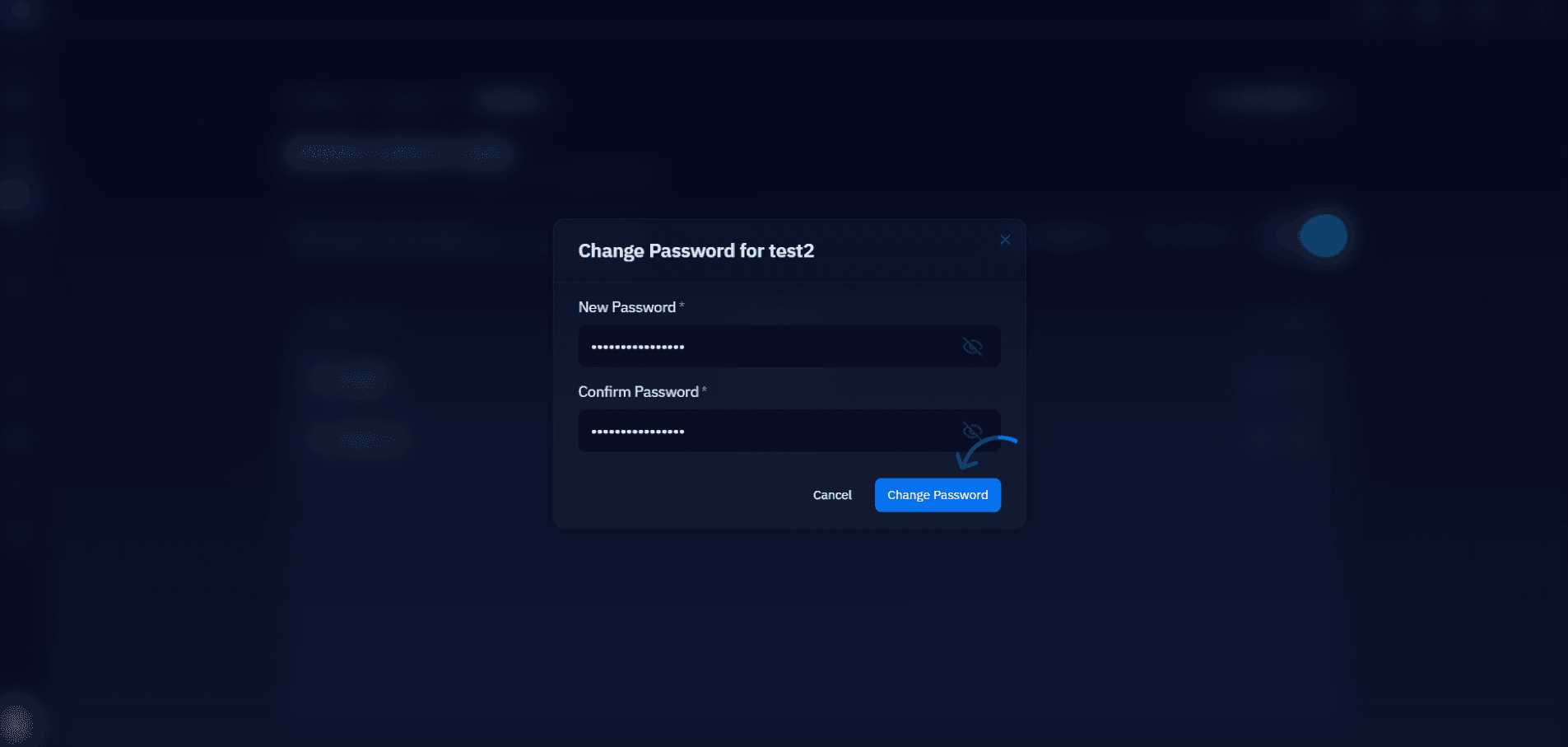
Fig. 02 — Change Password dialog for a database user, with New Password and Confirm Password fields filled in.
Step 4: Save the Change
Once both password fields match, apply the change. CloudStick updates the MySQL user password immediately — there is no propagation delay.
Click the blue Change Password button in the dialog to save.
The dialog will close and the password is updated instantly.
Update your application's database configuration (e.g. .env file or wp-config.php) with the new password immediately to restore connectivity.