How to Log In to WordPress Admin Using Magic Link in CloudStick
Overview
CloudStick's Magic Link feature lets you access the WordPress admin dashboard with a single click — no username or password required. Instead of navigating to your site's /wp-admin URL and typing credentials, you simply click Magic Link from the Website Summary page and CloudStick generates a secure, one-time login session for you automatically.
This guide walks you through the three steps to use the Magic Link: navigating to your server, opening the Websites section, and clicking the Magic Link button on the Website Summary page.
The Magic Link feature is available on the Business plan only. If you do not see the Magic Link button on your Website Summary page, check that your account is on the Business plan.
Step 1: Log In and Select Your Server
Start from the CloudStick Dashboard, where all your connected servers are listed.
Log in to your CloudStick account at app.cloudstick.io.
Locate your server in the server list on the Dashboard.
Click the server to open its management panel.
Step 2: Navigate to the Websites Section
Inside the server management panel, the Websites section lists all web applications hosted on that server.
Scroll down within the server panel and click on "Websites" in the left-hand navigation.
Find your WordPress website in the list of web applications.
Click on the website name to open its Website Summary page.
Step 3: Open Website Summary and Use the Magic Link
The Website Summary page shows your site's status, system user credentials, and quick action buttons — including the Magic Link.
Review the Website Summary page to confirm you have the correct WordPress site open.
Click the "Magic Link" button in the bottom-right of the Website Summary card.
CloudStick generates a secure one-time login link and opens the WordPress admin dashboard in a new tab — no password needed.
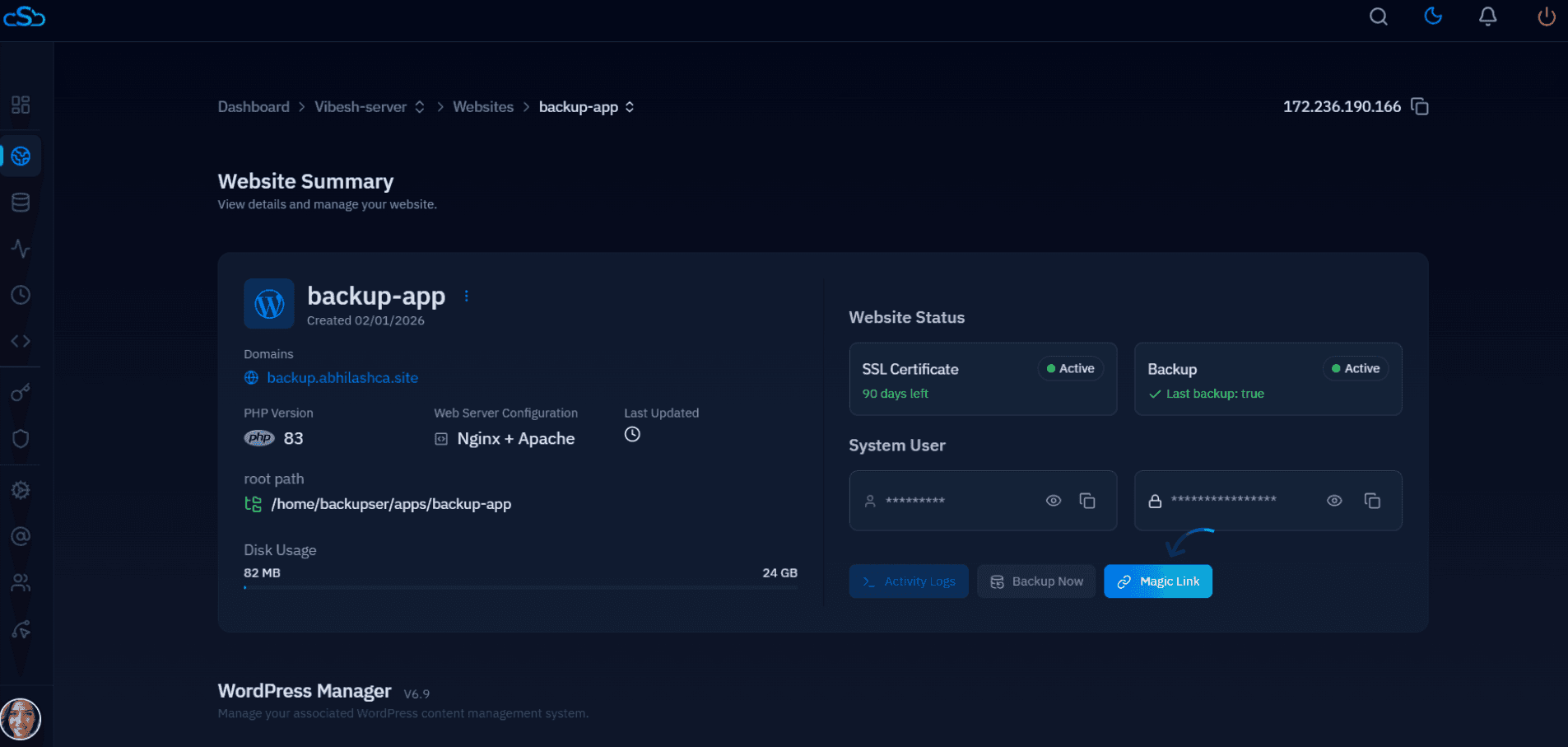
Fig. 01 — Website Summary page showing the Magic Link button alongside Activity Logs and Backup Now.
The Magic Link generates a one-time session. Each click creates a new login link. The link is valid for a short period, so use it immediately after clicking.