How to Reset MySQL Root Password
Overview
The MySQL root user is the master administrative account for your server's database engine. Resetting its password may be necessary if you have lost access, are rotating credentials for security hygiene, or are handing a server over to a new team. CloudStick makes this a one-step operation from the dashboard — no SSH session or command-line access required.
This guide walks you through navigating to the MySQL Settings panel, opening the reset dialog, entering a new root password, and confirming the change. The reset takes effect immediately.
Resetting the MySQL root password is irreversible — the dialog itself states this. Any process or script currently using the root credentials (e.g. backup tools or monitoring agents configured with root access) will lose connectivity immediately. Have your new password ready before you begin.
Step 1: Navigate to Databases
The MySQL root password reset is accessed through the MySQL Settings panel, which lives inside the Databases section of your server panel.
Log in to your CloudStick dashboard and open the server you want to manage.
In the left-hand navigation of the server panel, click the Databases icon to open the Databases page.
Step 2: Open MySQL Settings
The MySQL Settings panel contains server-level MySQL configuration options, including the root password reset. Open it from the top-right area of the Databases page.
Click the settings (gear) icon in the top-right corner of the Databases page to open the MySQL Settings dropdown.
In the dropdown, click Reset MySQL Password to open the reset dialog.
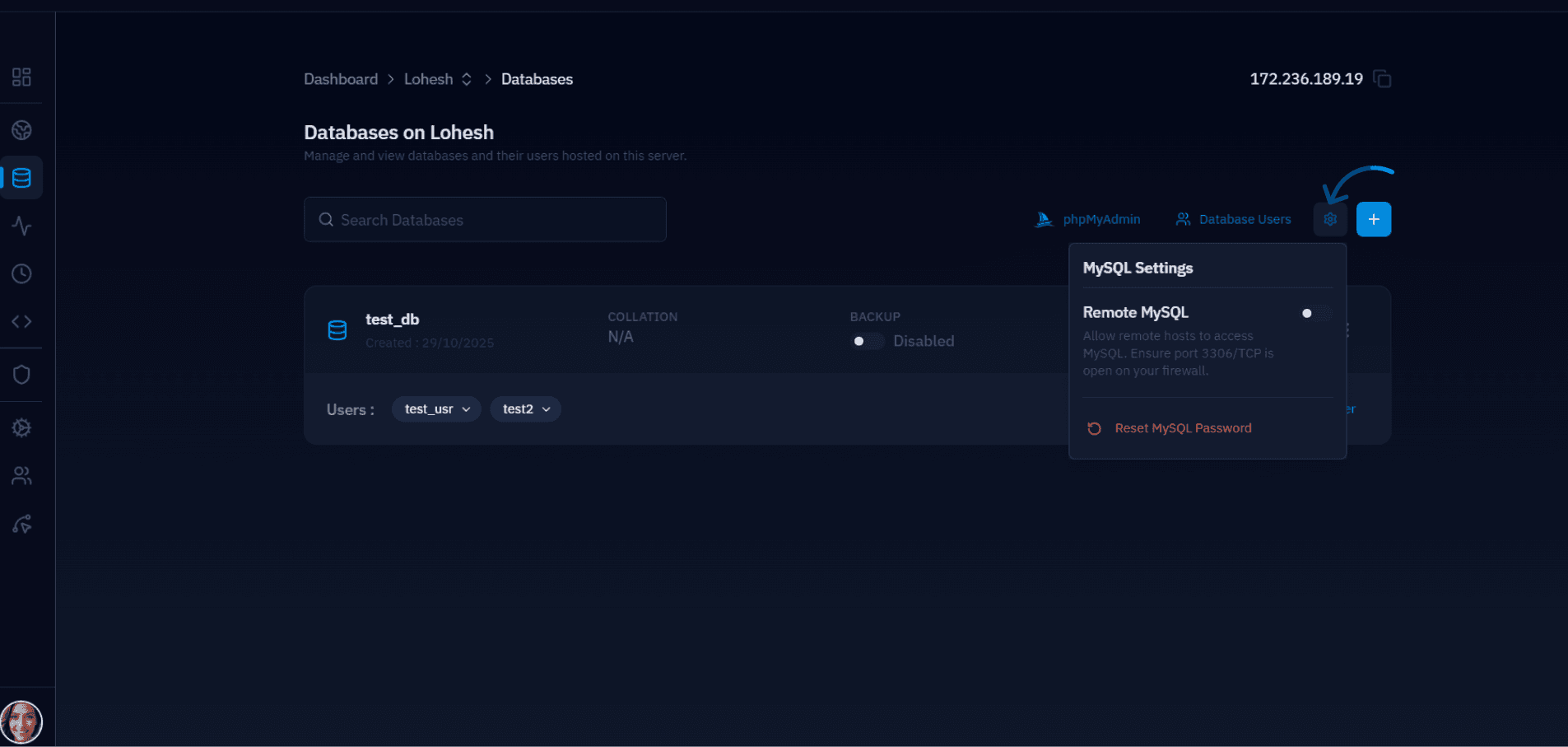
Fig. 01 — Databases page with MySQL Settings dropdown open, showing the Reset MySQL Password option.
Step 3: Enter a New Root Password
The Reset MySQL Root Password dialog prompts you to enter and confirm a new password. You can type one manually or use the built-in generator.
In the New Password field, enter your new root password — or click Generate to have CloudStick create a strong random password for you.
In the Confirm Password field, re-enter the same password to confirm.
Use the Generate option if you do not have a password policy requirement — it produces a cryptographically strong password and eliminates the risk of choosing a weak one.
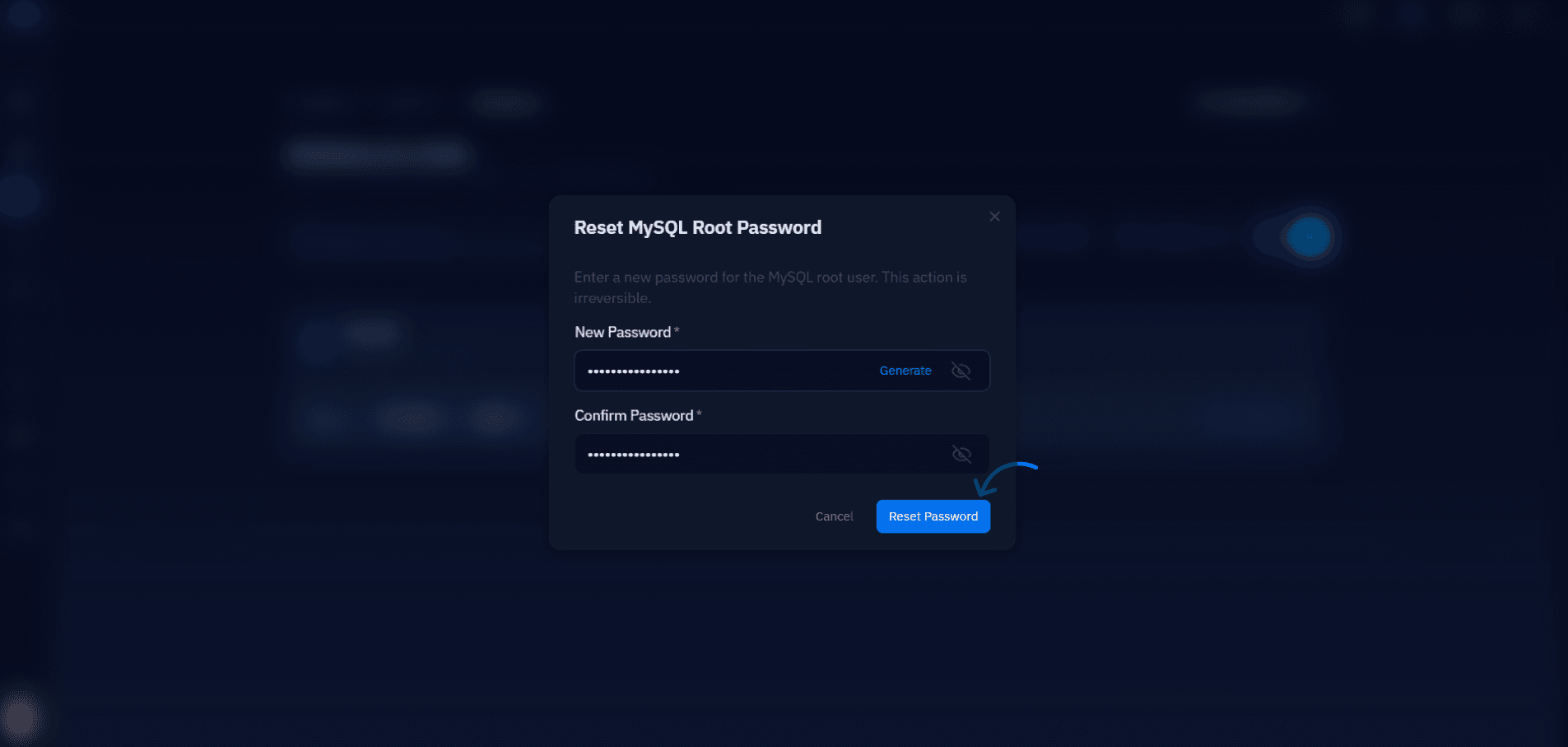
Fig. 02 — Reset MySQL Root Password dialog with New Password and Confirm Password fields filled in, and the Reset Password button highlighted.
Step 4: Apply the Reset
Once both fields match, submit the change. CloudStick updates the MySQL root password immediately on the server.
Click the blue Reset Password button to apply the change.
A success message will confirm the password has been updated.
Store the new root password in a secure location — a password manager or your team's secrets vault.
If you used the Generate option, copy the generated password before closing the dialog. CloudStick will not show it again after the modal closes.