How to Transfer a Server to Another CloudStick Account
Overview
CloudStick allows you to permanently transfer ownership of a server from your account to another CloudStick user. Once the transfer is complete, the server — along with all its websites, databases, and configurations — moves to the recipient's dashboard exactly as-is. You will no longer have access to it. This is the right tool when handing a server over to a client, consolidating infrastructure under a different account, or offboarding a project entirely.
Unlike the Team feature, which lets multiple people share managed access while you retain ownership, a transfer is a one-way, permanent action. There is no approval step on the recipient's end — the server moves to their account as soon as you confirm. This guide walks you through the full process from the dashboard to the final confirmation.
Prerequisites: You must be the owner of the server you want to transfer, and the recipient must already have an active CloudStick account. Have their registered CloudStick email address ready before you begin — entering the wrong email will transfer the server to the wrong account and this action cannot be undone.
Step 1: Log In and Select Your Server
Start from your main CloudStick dashboard, where all your connected servers are listed. You need to open the specific server you want to transfer before you can access the transfer option.
Log in to your dashboard: Go to dash.cloudstick.io and sign in with your credentials.
Click on the server: From the dashboard, click on the server card for the server you want to transfer. This opens that server's management panel.
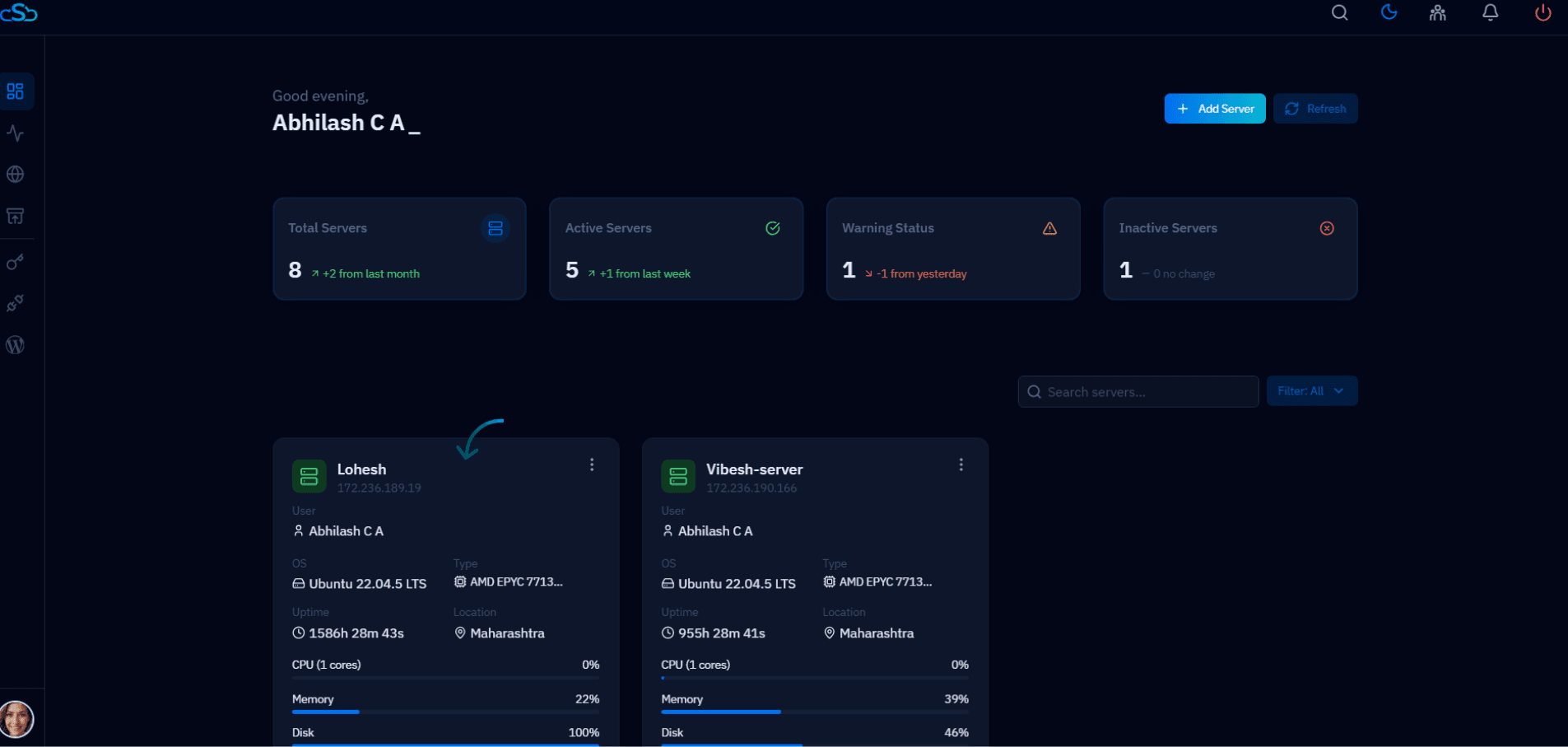
Fig. 01 — CloudStick dashboard with the target server card highlighted.
Step 2: Open the Transfer Option
The Transfer Server option is found inside the server's settings, under the Configuration section. Navigating here ensures you are acting on the correct server before entering any recipient details.
Go to Server Settings: Inside the server panel, navigate to Server Settings. You will see tabs for All Settings, Configuration, and Maintenance.
Locate Transfer Server: Under the Configuration section, find the Transfer Server card. It is described as "CloudStick will let you transfer your server to another active CloudStick account."
Click the Transfer button: Click the Transfer → button on the Transfer Server card to open the transfer form.
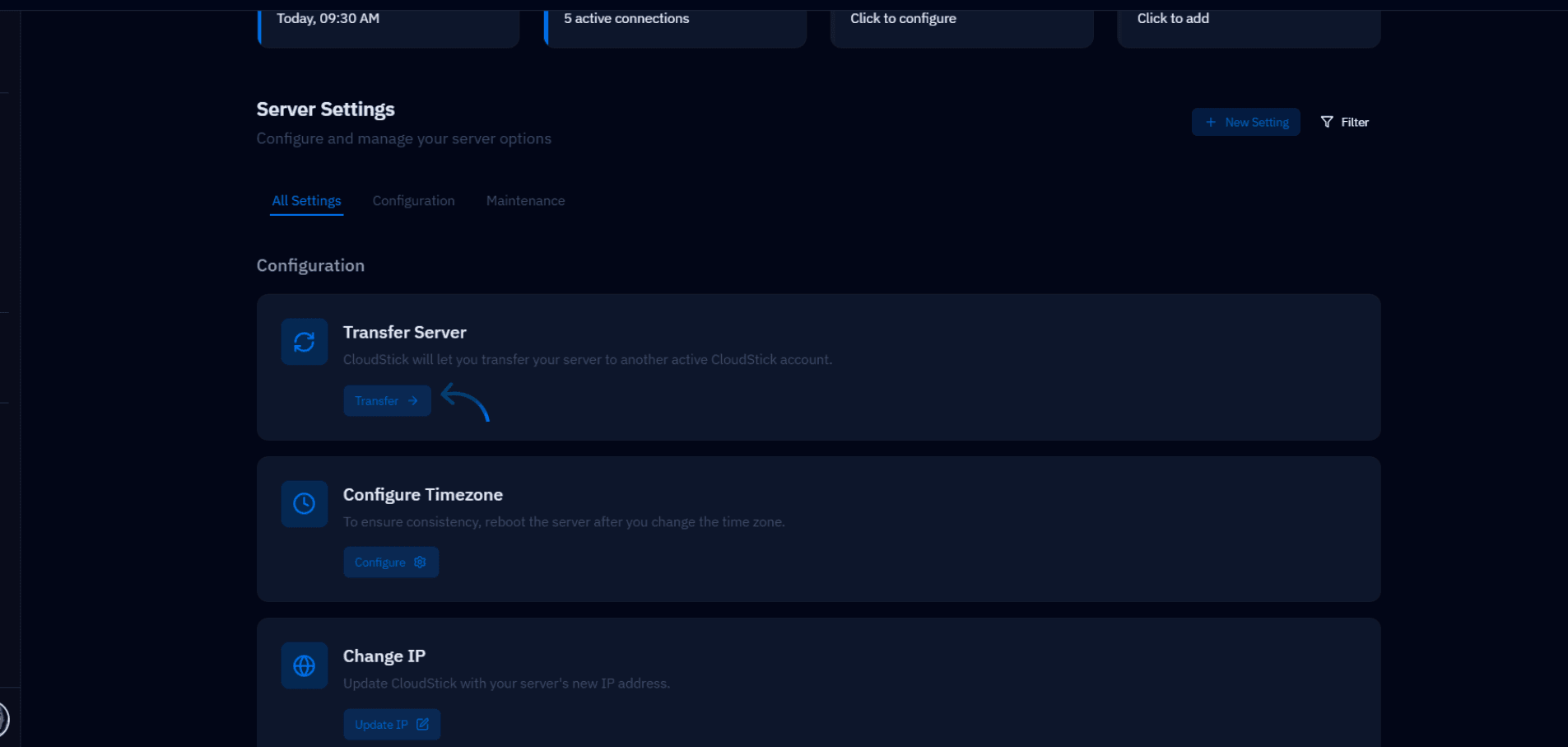
Fig. 02 — Server Settings page showing the Transfer Server card with the Transfer button highlighted.
Step 3: Enter Recipient Email and Confirm
The transfer form shows the server being transferred and a single field for the recipient's email address. A warning is displayed reminding you that this action moves all associated data and cannot be undone — verify the email carefully before proceeding.
Verify the server name: Confirm that the server shown in the form is the correct one you intend to transfer.
Enter the recipient's email: Type the registered CloudStick email address of the account you are transferring the server to in the Recipient Email field.
Click Transfer Server: Once you have double-checked the email address, click the Transfer Server button to complete the transfer. The server will be removed from your account immediately and will appear in the recipient's CloudStick dashboard.
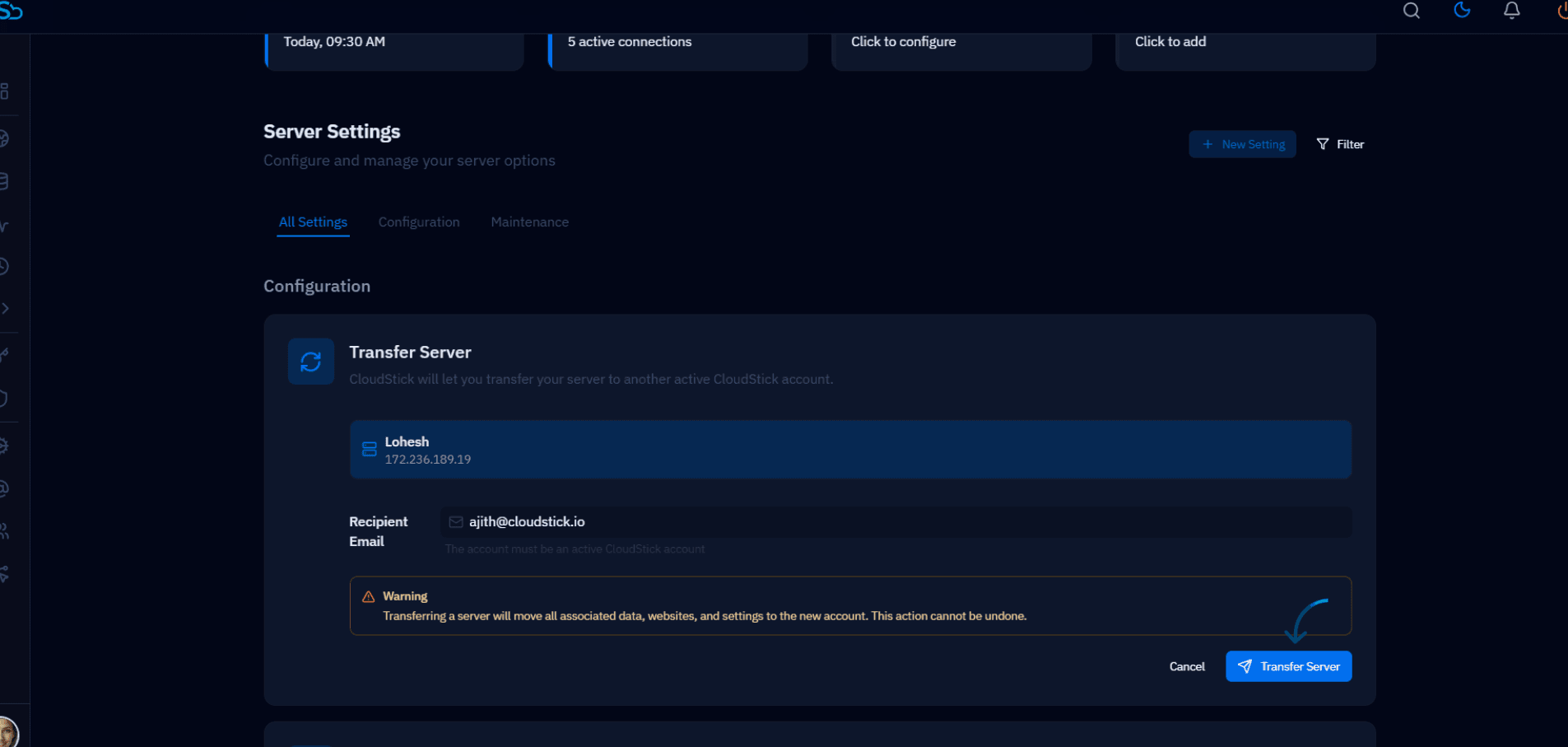
Fig. 03 — Transfer Server form with recipient email entered and the irreversible-action warning visible.
After the transfer, the server will no longer appear in your dashboard. All websites, databases, and server configurations move to the recipient's account exactly as they were — nothing is deleted or reset in the process. If you only want to give someone else managed access without losing ownership, use the Team feature instead.