How to Use Your Git SSH Deploy Key in CloudStick
Overview
CloudStick generates a unique Git SSH Deploy Key for your account — a read-only SSH public key that allows CloudStick to securely clone and pull code from your private Git repositories on GitHub, GitLab, or Bitbucket without requiring your personal credentials. This is the foundation for CloudStick's Git Deployment feature, which lets you push code directly from your repository to your web applications.
This guide shows you how to find and copy your deploy key from the CloudStick profile, then register it as a Deploy Key in your Git provider so CloudStick can access your repositories automatically.
You need at least a Basic plan to use Git Deployment in CloudStick. The deploy key is read-only — CloudStick can pull code but cannot push changes back to your repository.
Step 1: Open Your Profile
The Git SSH Deploy Key is stored in your CloudStick profile, accessible from the dashboard navigation.
1. Log in: Sign in to your CloudStick account at app.cloudstick.io.
2. Click your profile avatar: At the bottom-left corner of the dashboard, click your profile avatar or account name to open the profile popup.
3. Enter Account Settings: Click the arrow icon next to your name to navigate into the full profile settings view.
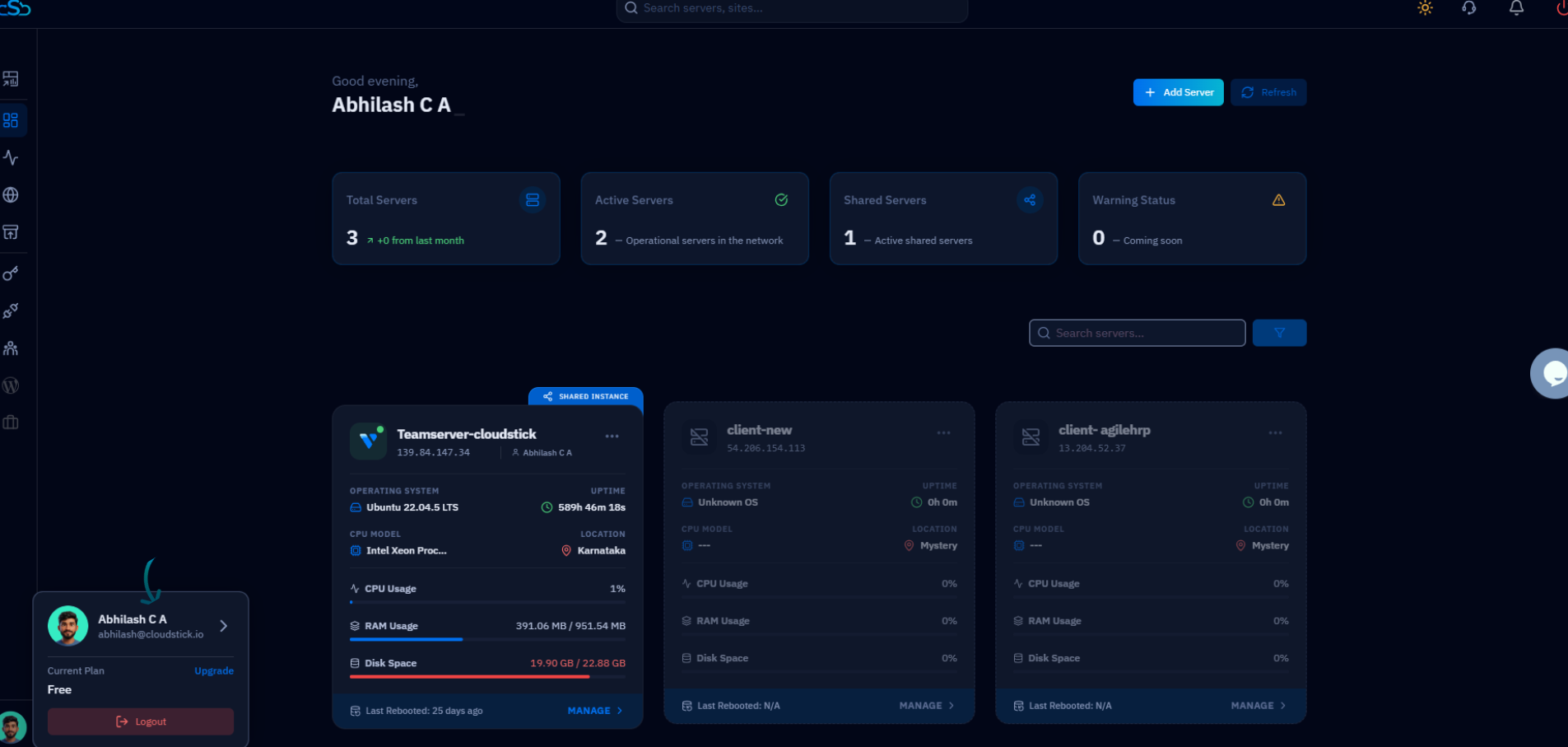
Fig. 01 — CloudStick dashboard with the profile popup open at the bottom-left corner.
Step 2: Open Your Git SSH Deploy Key
The profile page lists all account sections as cards. The User Git SSH Key card takes you directly to your deploy key.
1. Locate the User Git SSH Key card: On the profile page, find the card labelled "User Git SSH Key" with the description "View and manage your Git deploy configuration."
2. Click the arrow: Click the arrow (→) on the card, or click User GIT SSH in the right-hand navigation panel, to open the Git SSH Deploy Key view.
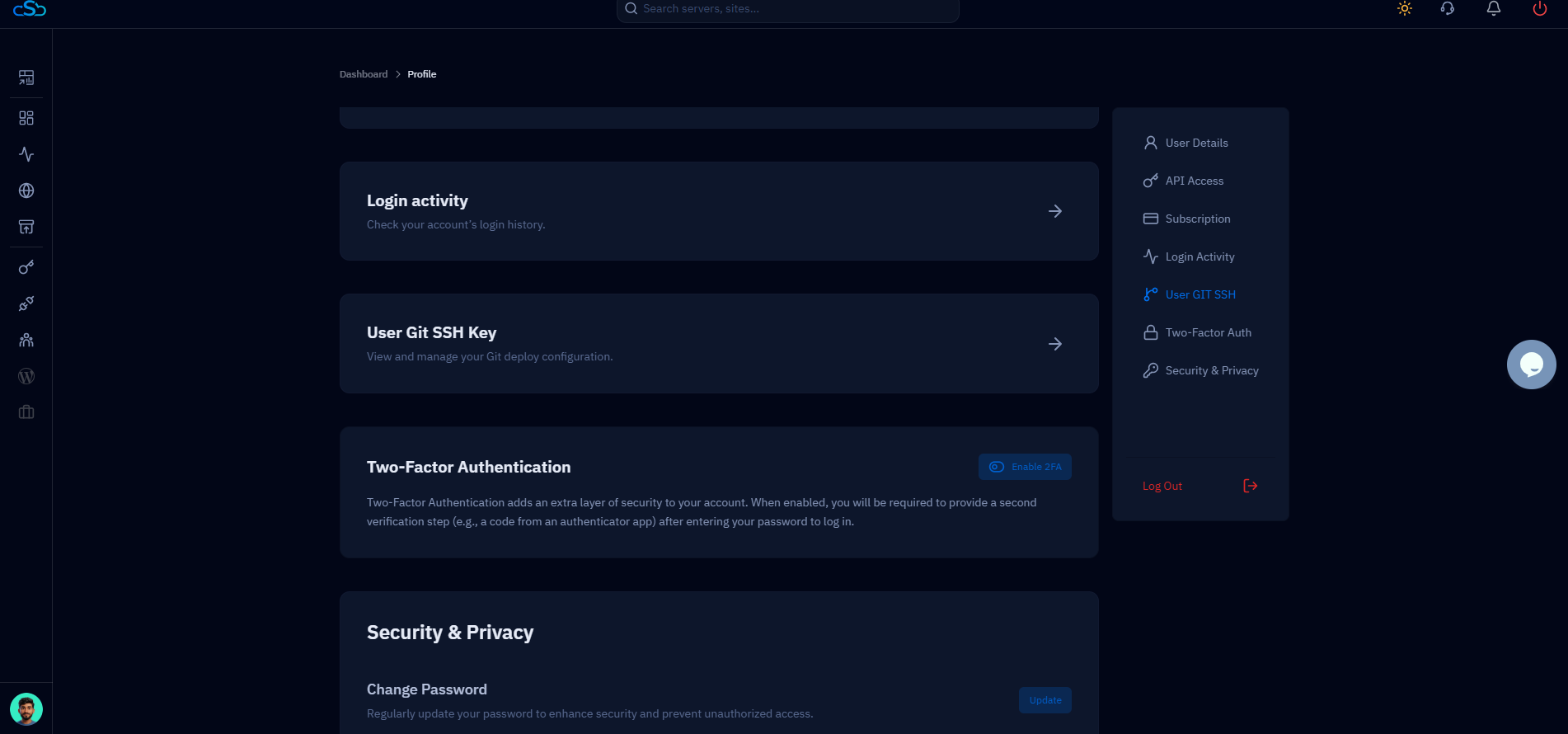
Fig. 02 — Profile page showing the User Git SSH Key card with User GIT SSH highlighted in the right navigation.
Step 3: Copy Your SSH Public Key
The User Git SSH Deploy Key dialog displays your account's SSH public key — a long string starting with ssh-rsa. This is what you will add to your Git provider.
1. View your key: The dialog shows your full SSH public key in a text box with the instruction "Add this SSH key to your Git repositories as a Deploy Key to allow CloudStick to securely pull your code."
2. Click Copy Key: Click the blue Copy Key button to copy the entire SSH public key to your clipboard. You can also click Refresh to regenerate a new key pair if needed.
Only copy the public key shown in this dialog. Never share the corresponding private key with anyone. CloudStick holds the private key securely on its servers — you only need to provide the public key to your Git provider.
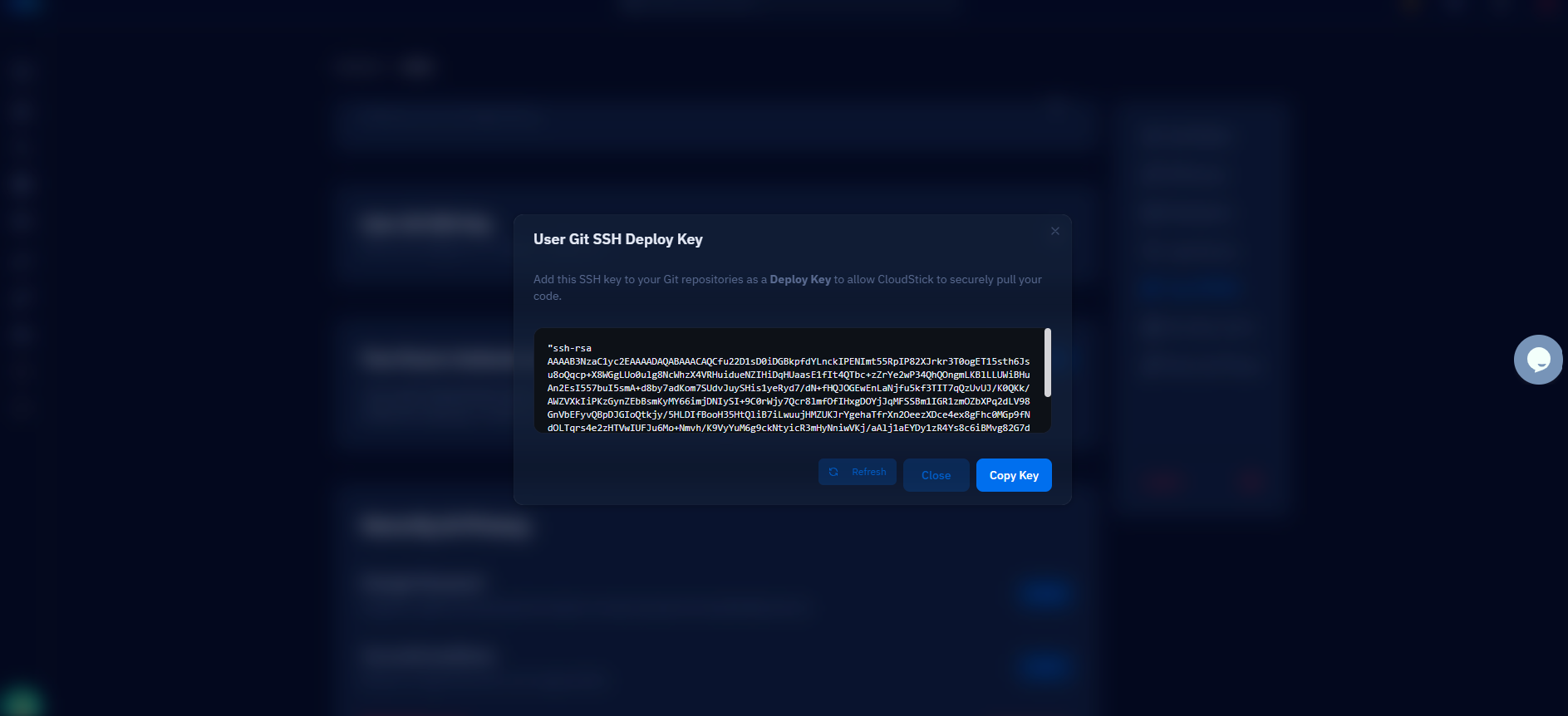
Fig. 03 — User Git SSH Deploy Key dialog showing the SSH public key with the Copy Key button.
Step 4: Add the Key to Your Git Repository
With the key copied, go to your Git provider and register it as a Deploy Key on the repository you want CloudStick to access.
GitHub
Navigate to your repository on GitHub.
Go to Settings → Deploy keys.
Click Add deploy key, give it a title (e.g., CloudStick), paste the key, and click Add key.
GitLab
Navigate to your repository on GitLab.
Go to Settings → Repository → Deploy keys.
Expand the Deploy keys section, enter a title, paste the key, and click Add key.
Bitbucket
Navigate to your repository on Bitbucket.
Go to Repository settings → Access keys.
Click Add key, enter a label, paste the key, and save.
Deploy keys are per-repository. If you want CloudStick to access multiple repositories, you must add the same deploy key to each repository's settings individually.