How to View Backup Activity Logs in CloudStick
Overview
Automated backups only give you peace of mind if you can confirm they are actually running. CloudStick's Backup Activity Logs give you a single, auditable timeline of every backup-related action across your servers and websites — when a backup was created, restored, downloaded, deleted, or run on schedule, and whether each operation succeeded or failed.
This guide shows you how to open the Backups section, navigate to the Backup Activity Logs view, read the activity timeline, filter it down to exactly what you need, and drill into a single log entry for full details — so you can verify your data is protected and troubleshoot any backup issues quickly.
Backup activity is only recorded once backups are enabled. If you haven't set this up yet, first enable backups for your database or website and activate your backup quota — see the related Backup articles in this category before continuing.
Step 1: Log In to CloudStick
Everything starts from your CloudStick dashboard — the home base that lists every server connected to your account and gives you access to all platform features.
Sign in to CloudStick: Log in with your account credentials to open the main dashboard, where your connected servers are displayed.
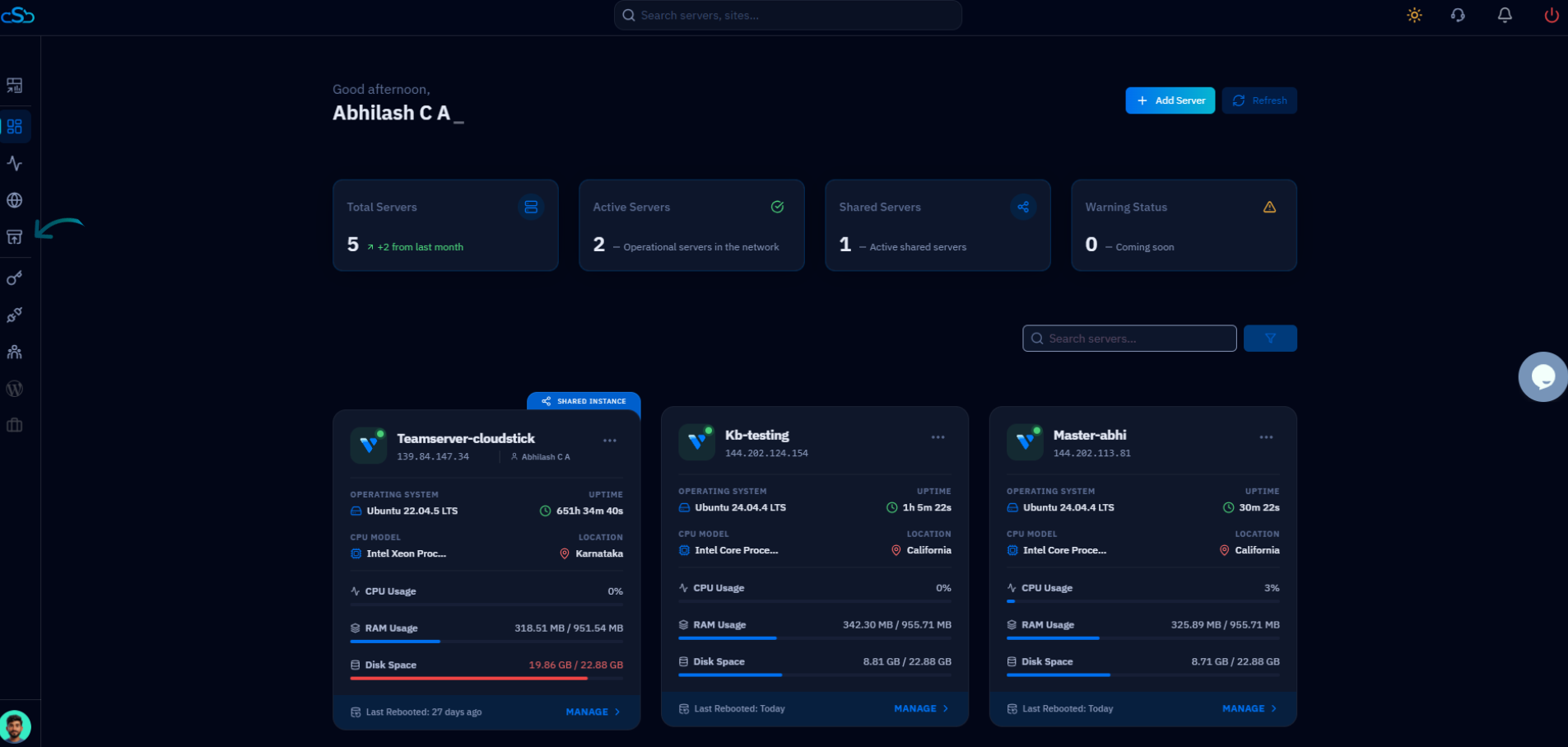
Fig. 01 — The CloudStick dashboard shown after login, listing your connected servers.
Step 2: Open Backups
The Backups area is where all backup management lives — schedules, storage usage, archived snapshots, and the activity logs you're here to view.
Click Backups: From the left-side navigation menu, click the Backups icon to open the backup management area.
You'll land on the Database Backup List, which shows configured backup schedules and storage. The BackUp Activity Log entry point sits at the bottom of this view.
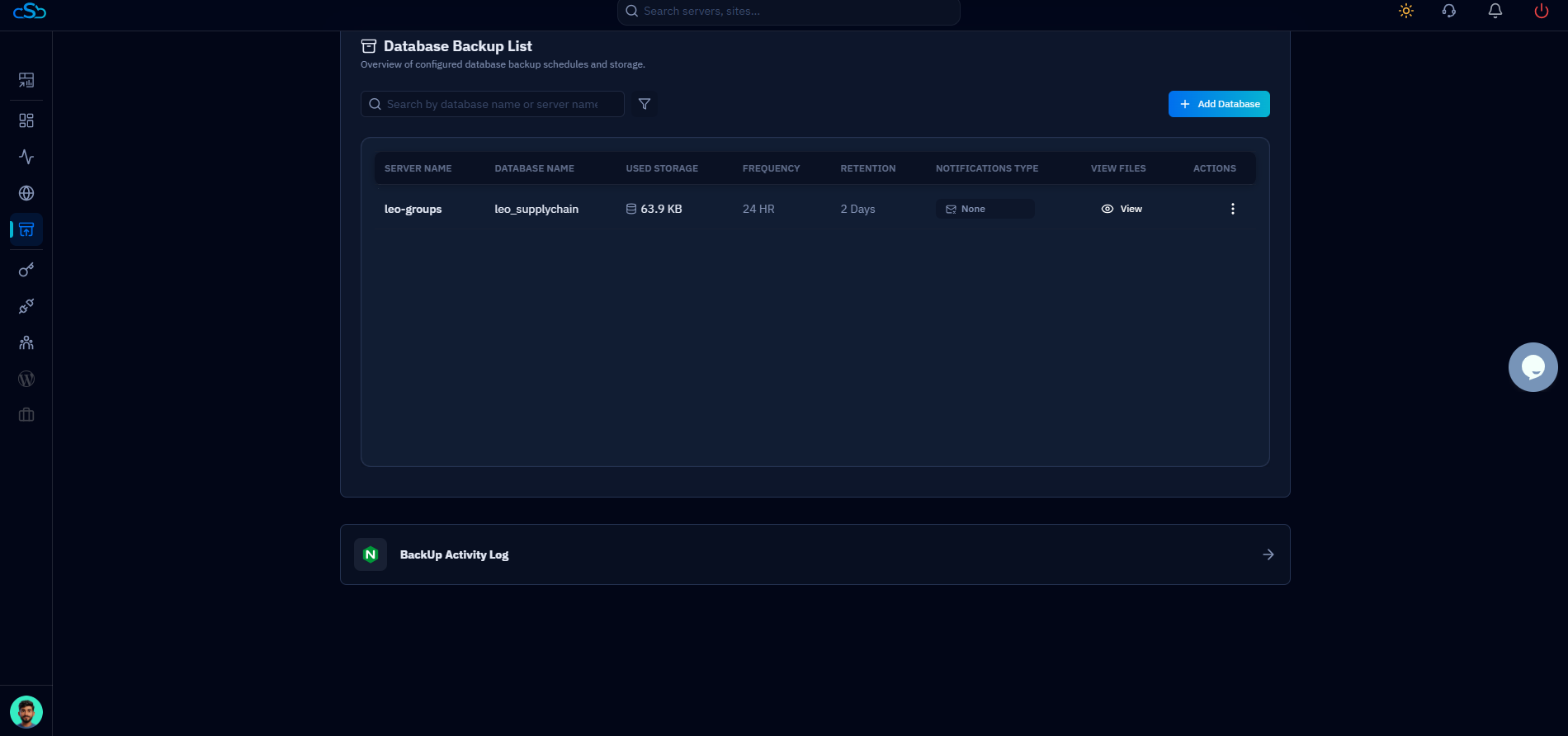
Fig. 02 — The Backups section showing the Database Backup List, with the BackUp Activity Log entry point at the bottom.
Step 3: Open Backup Activity Logs
The Backup Activity Logs view is dedicated to monitoring and auditing every backup and restoration task across your account.
Navigate to Backup Activity Logs: Open the Backup Activity Logs section to load the full timeline of backup operations.
The header reads Backup Activity Logs — Monitor and audit all backup and restoration tasks, confirming you're in the right place.
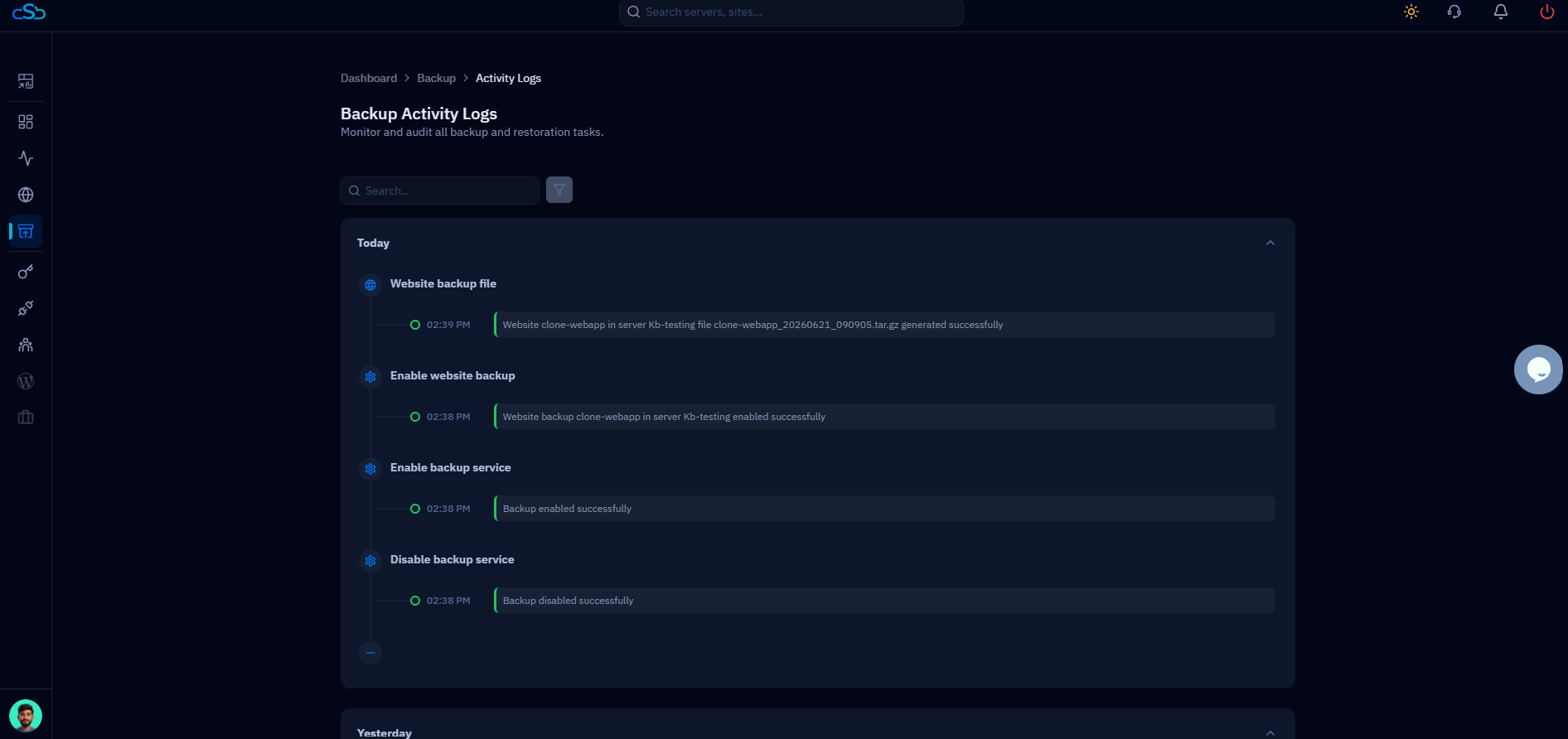
Fig. 03 — The Backup Activity Logs view, grouped by day, listing each backup operation with its status and timestamp.
Step 4: View Backup Logs
The activity feed lists every backup action in chronological order, grouped under headings like Today and Yesterday. Each entry is timestamped and color-coded by outcome.
The log captures the full range of backup activity, including:
Backup creation — when a new backup file is generated.
Backup restoration — when a snapshot is restored.
Backup deletion — when a backup is removed.
Backup download operations — when a backup file is downloaded to localhost.
Scheduled backup activities — automated backups that ran on schedule.
Step 5: Use Filters
When the log grows long, the Filter option lets you narrow the timeline down to exactly the operations you care about.
Click Filter: Open the filter panel next to the search bar to refine the results.
You can narrow down results by:
Date and time — focus on a specific day or time range.
Status — show only Success or Failed operations.
Activity type — filter by creation, restoration, deletion, download, or scheduled runs.
Website or server — isolate activity for a single site or server.
Step 6: Review Log Details
For a closer look at any single operation, open the individual log entry to see the full details of what happened, when, and on which server or website.
Click a log entry: Select any activity in the feed to view detailed information about that specific backup operation.
Use these details to confirm a backup completed successfully, trace a failed operation, or verify exactly which file was created, restored, or downloaded.
Backup Activity Logs help you track backup history, troubleshoot backup issues, and verify that backup and restore operations were completed successfully.