SSL Certificate Renewal and Troubleshooting
Overview
CloudStick automatically renews your Let's Encrypt SSL certificate before it expires — under normal circumstances, you don't need to do anything. However, if you see a warning that your certificate is expiring soon or has already expired, the auto-renewal process has encountered an issue that needs to be resolved manually.
This guide walks you through the three escalating steps to resolve SSL renewal failures: attempting a manual renewal, removing and redeploying the certificate, and contacting CloudStick support if both approaches fail.
Let's Encrypt enforces strict rate limits: 50 certificates per registered domain per week, and no more than 5 duplicate certificates for the same set of domains within 7 days. Avoid repeatedly attempting renewal — if the first manual attempt fails, proceed directly to Step 2.
Step 1: Try Renewing Manually
Before taking any drastic action, attempt a manual renewal through the SSL Management page. This resolves the majority of renewal failures caused by temporary validation issues.
1. Navigate to your website: From the CloudStick dashboard, open the website experiencing the SSL issue.
2. Click Manage SSL: In the top navigation bar of the website panel, click the Manage SSL tab.
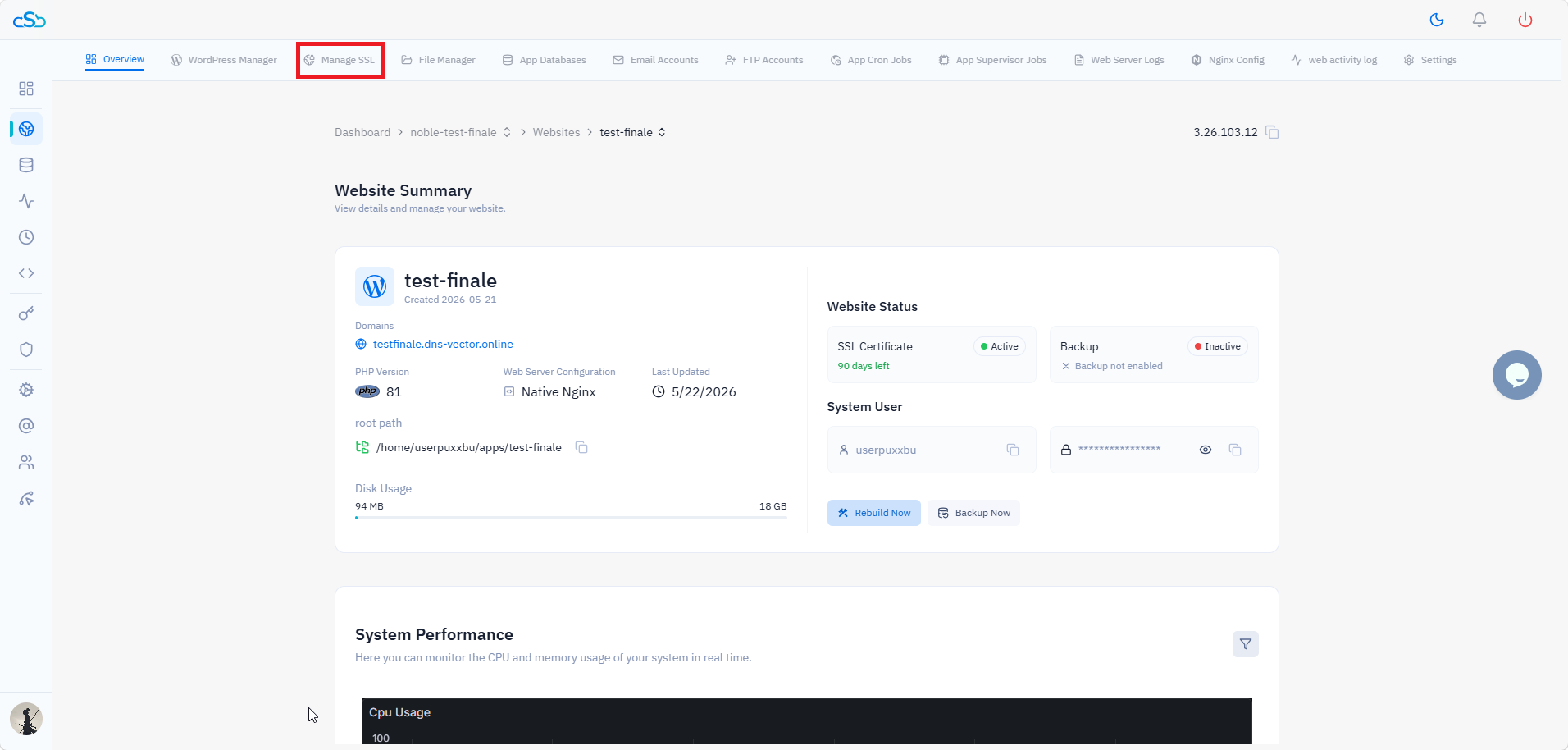
Fig. 01 — Website panel with the Manage SSL tab highlighted in the top navigation bar.
3. Click the Renew button: On the SSL Management page, locate your active certificate and click the Renew button next to it.
4. Wait for the process to complete: CloudStick will attempt to revalidate your domain and issue a renewed certificate from Let's Encrypt.
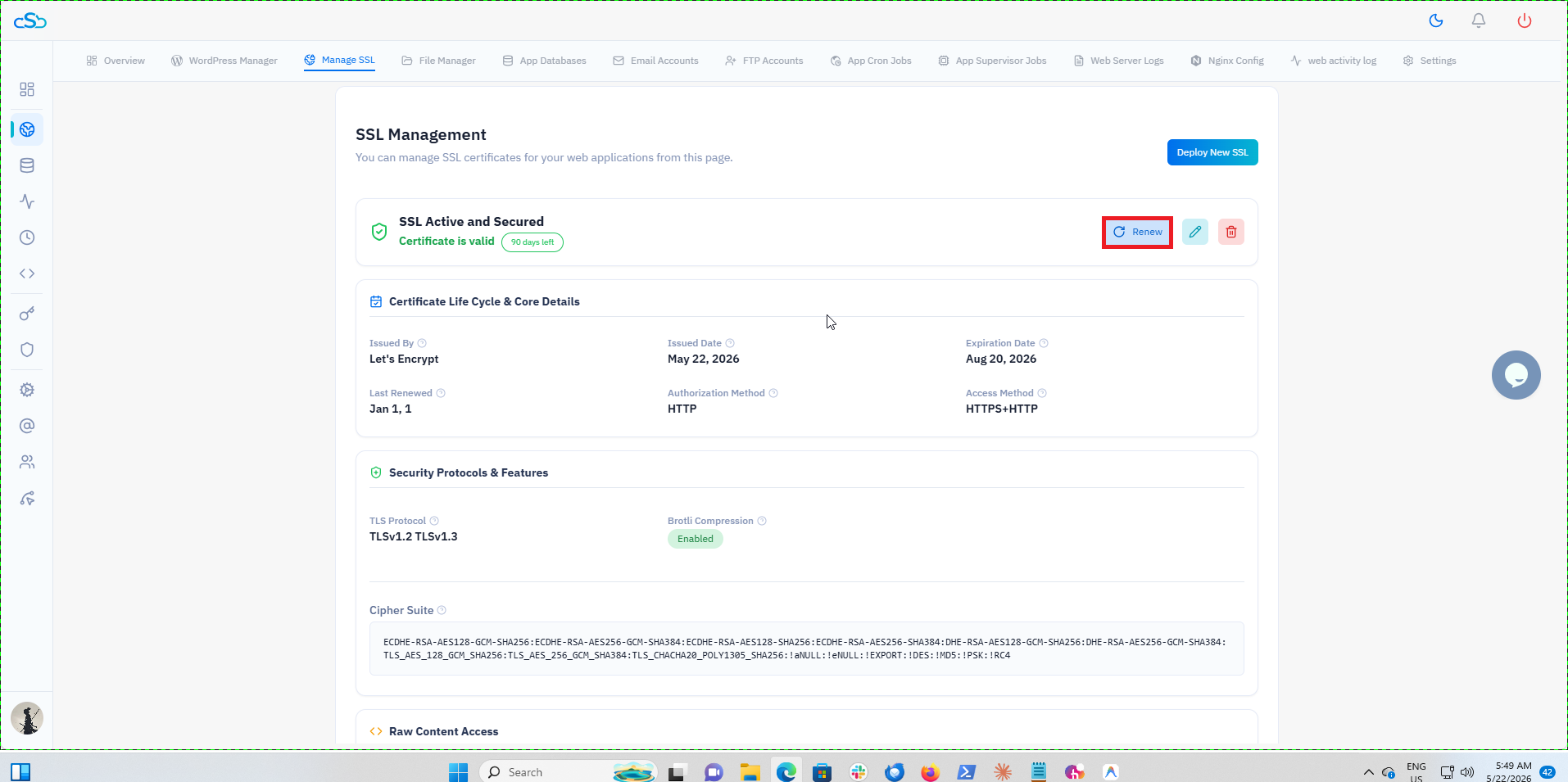
Fig. 02 — SSL Management page showing the Renew button next to an active certificate.
If renewal succeeds, the SSL Management page will show SSL Active and Secured with a new expiry date. No further action is needed.
If the renewal attempt fails, do not retry multiple times — doing so risks hitting Let's Encrypt rate limits, which can block new certificate requests for up to a week. Proceed directly to Step 2.
Step 2: Remove and Redeploy SSL
If manual renewal fails, the next step is to remove the existing certificate entirely and deploy a fresh one. This clears any corrupted state and issues a brand-new certificate from Let's Encrypt.
Brief downtime warning — removing the SSL certificate will make your site temporarily inaccessible over HTTPS until the new certificate is deployed. Plan this step during low-traffic hours if possible.
Remove the existing certificate
1. Open the SSL Management page: Navigate to your website panel and click the Manage SSL tab.
2. Delete the current certificate: Click the delete (trash) icon next to the active certificate.
3. Confirm the deletion: When prompted, confirm that you want to remove the certificate.
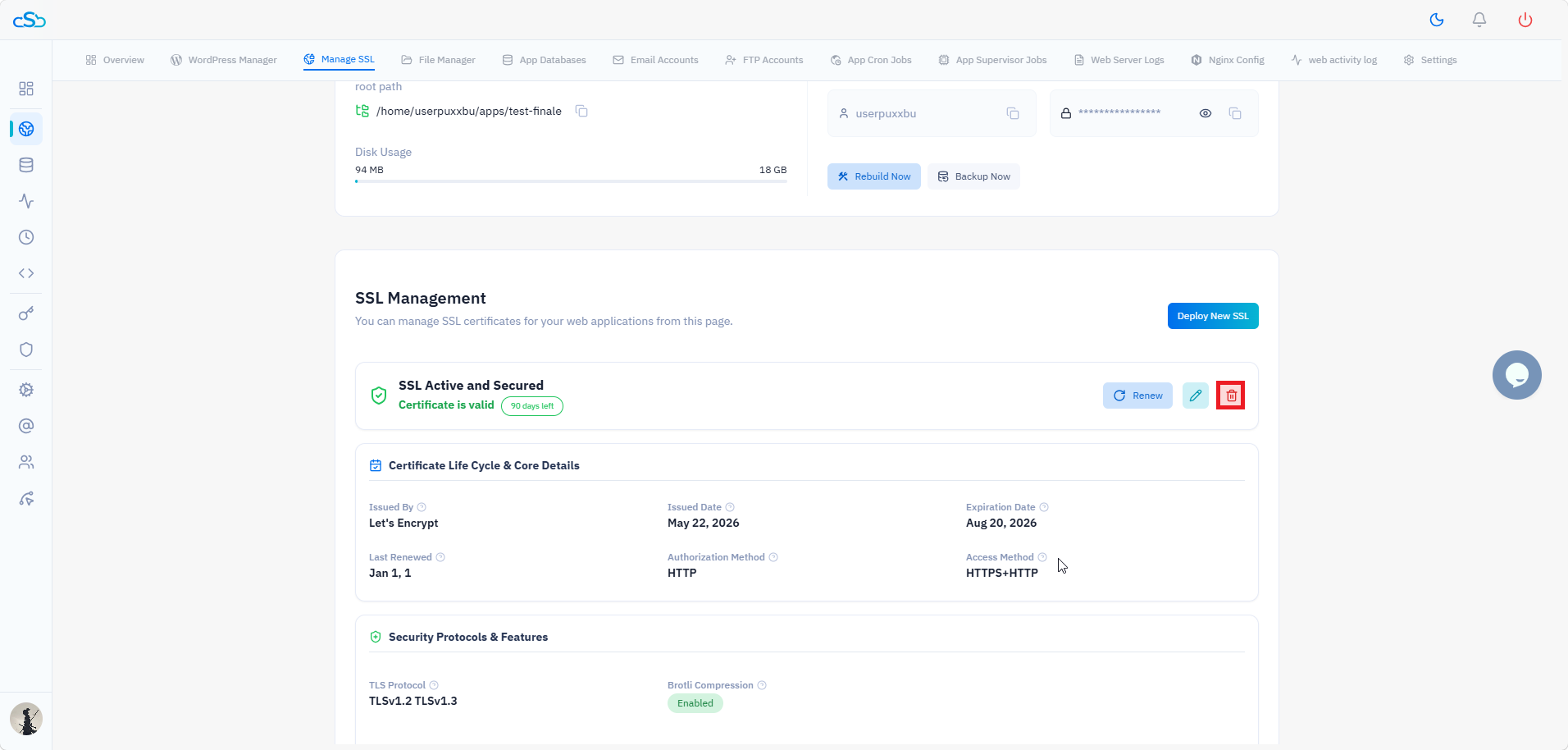
Fig. 03 — SSL Management page showing the delete (trash) icon next to the active certificate.
Deploy a fresh certificate
4. Click Deploy New SSL: Once the certificate is removed, the SSL Management page will show 'No SSL found'. Click the Deploy New SSL button.
5. Follow the deployment steps: Complete the prompts to issue a new Let's Encrypt certificate for your domain.
6. Confirm success: Wait for the page to show SSL Active and Secured with a valid expiry date.
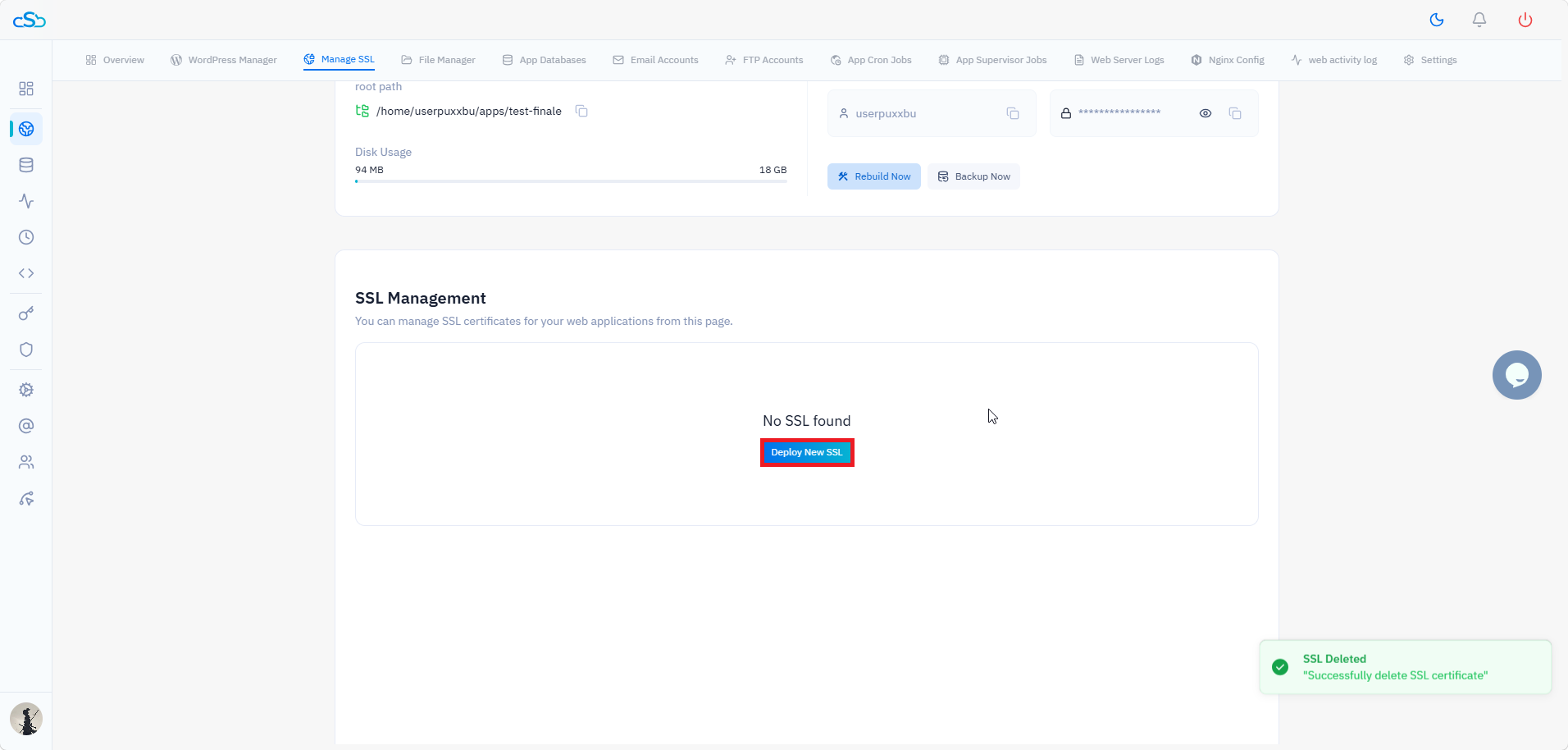
Fig. 04 — SSL Management page showing 'No SSL found' after deletion, with the Deploy New SSL button ready.
If the new certificate deploys successfully, your site is secured again. No further action is needed.
If this deployment also fails, there is likely a deeper issue with your domain's DNS configuration, server network settings, or Let's Encrypt rate limits. Proceed to Step 3 for support.
Step 3: Contact CloudStick Support
If both manual renewal and redeployment have failed, the issue likely requires investigation by the CloudStick team. Our support team can inspect your server's DNS configuration, certificate logs, and Let's Encrypt validation responses to identify the root cause.
When reaching out to support, include the following details to speed up resolution:
Server name and IP address: Visible in the top right of the website panel.
Domain name: The exact domain the SSL certificate was issued for.
Error message: The exact error shown during renewal or deployment.
Steps already taken: Confirm you have attempted both manual renewal and remove-and-redeploy.