How to Change PHP CLI Version
Overview
The PHP CLI (command-line interface) version is the PHP build that runs when scripts are executed outside the browser — Composer commands, Artisan and other framework tasks, CronJobs, queue workers, and deployment scripts all rely on it. This is separate from the PHP version a website serves over the web, so a server can be running one PHP version for HTTP requests while the CLI still defaults to another. Matching the CLI version to your application's requirements ensures these background tasks behave exactly as expected.
CloudStick lets you switch the server's PHP CLI version directly from the dashboard, with no SSH access or manual update-alternatives commands. This guide walks you through selecting your server, opening Server Settings, choosing a PHP version from the Change PHP CLI Version card, and saving the change.
Changing the PHP CLI version affects command-line tasks across the whole server, not a single website. Confirm your applications and scripts are compatible with the version you select before applying the change. To change the PHP version a website serves over the web instead, see How to Change PHP Version.
Step 1: Select Your Server
Start from the CloudStick Dashboard, where all of your connected servers are listed.
1. Open the Dashboard: Sign in to your CloudStick account to view all connected servers.
2. Select the server: Click the server where you want to update the PHP CLI version to open its server panel.
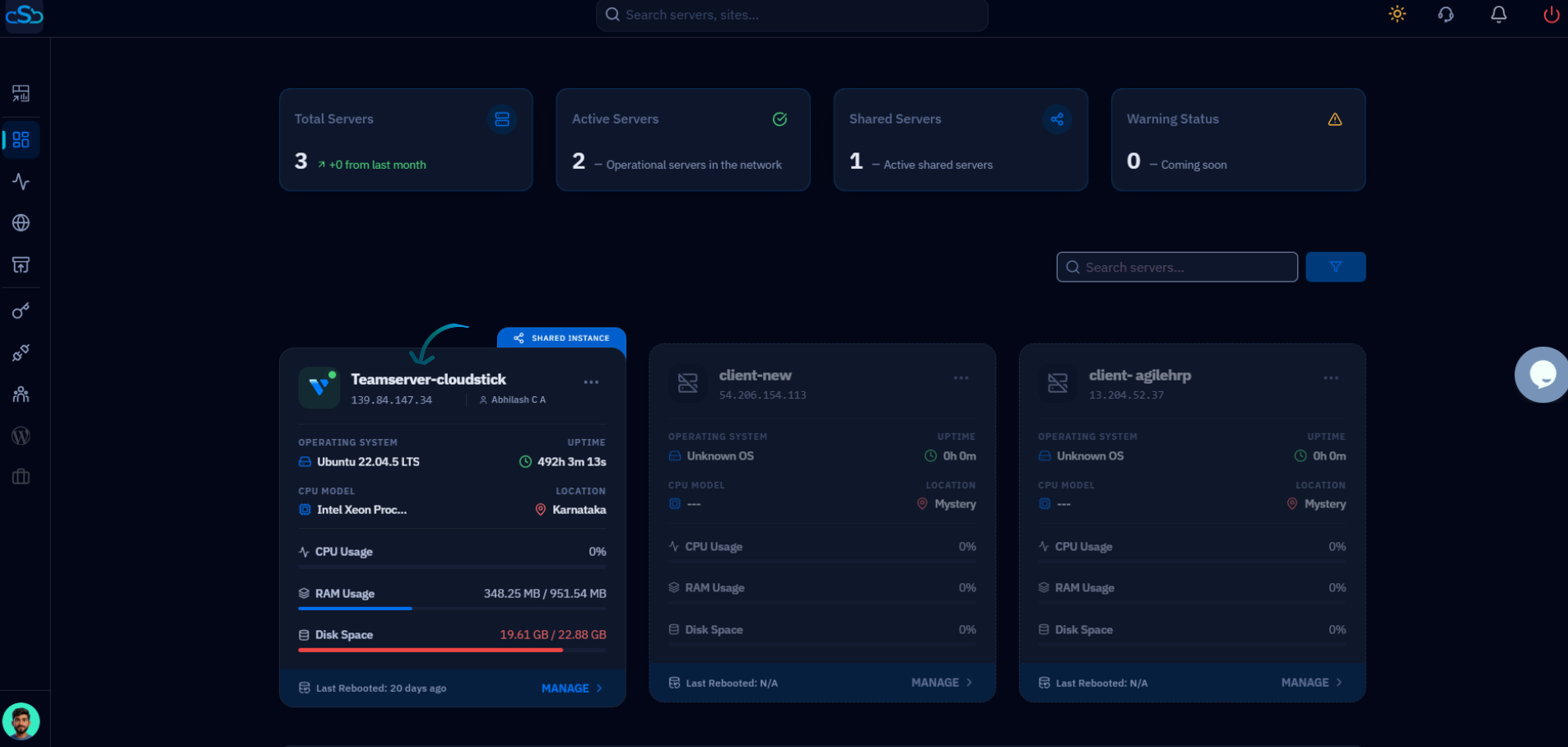
Fig. 01 — The CloudStick Dashboard listing connected servers; click the server card to open its management panel.
Step 2: Open Server Settings
The PHP CLI control lives in the server's settings area, alongside other server-level options such as Cleanup disk space and Auto Update.
1. Go to Server Settings: Within the server panel, navigate to the Server Settings section.
2. Open Change PHP CLI Version: Locate the Change PHP CLI Version card — which shows the currently active CLI version — and click the Change button.
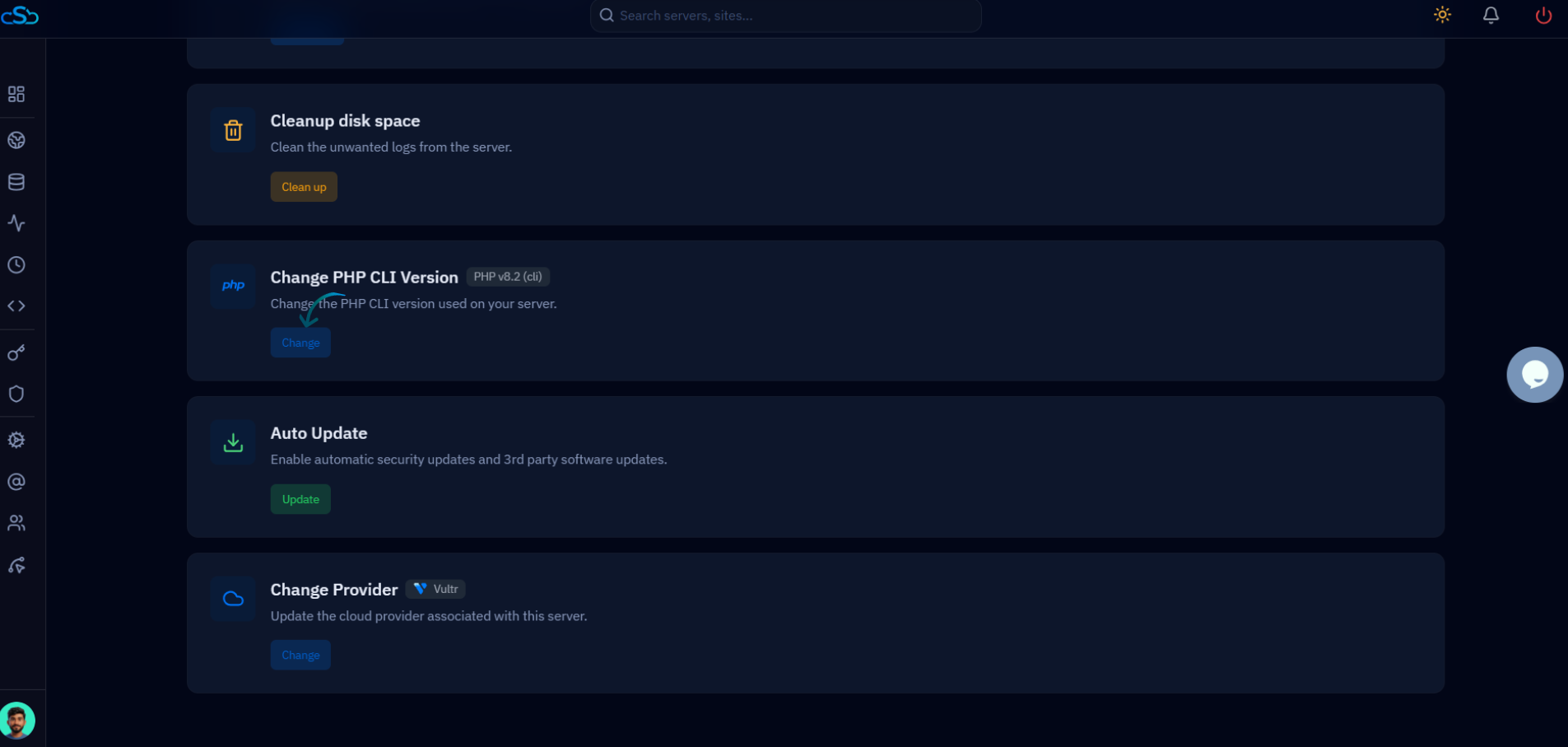
Fig. 02 — The Server Settings section showing the Change PHP CLI Version card with its current version and the Change button.
Step 3: Choose PHP Version
CloudStick lists every PHP version installed on the server so you can pick the one your application needs.
1. Open the dropdown: Click the Select PHP version dropdown to reveal the available PHP CLI versions.
2. Pick your version: Choose the required version from the list — for example, PHP 8.1, 8.2, 8.3, 8.4, or 8.5 — to match your application's requirements.
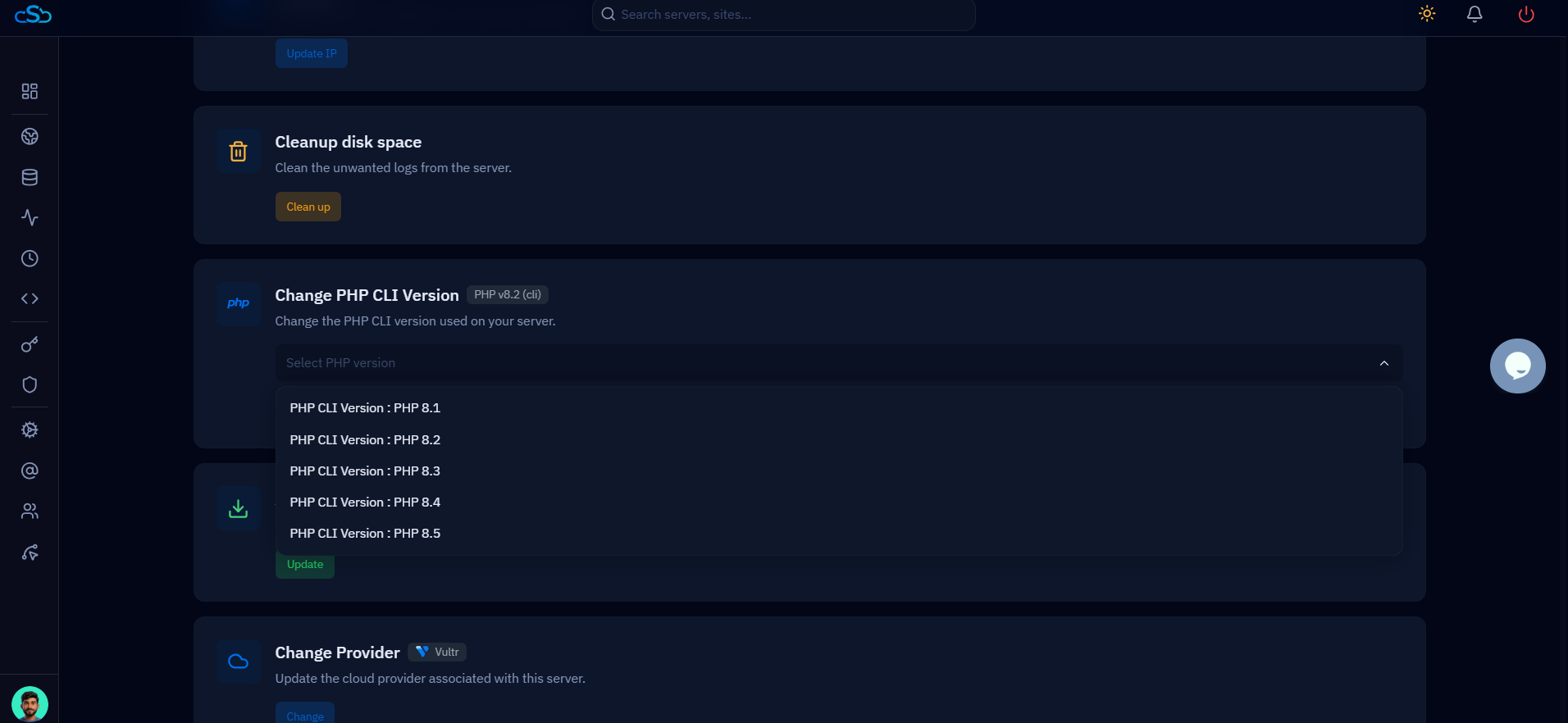
Fig. 03 — The Select PHP version dropdown expanded, listing the available PHP CLI versions to choose from.
Step 4: Save Changes
Confirm your selection so CloudStick can switch the server's PHP CLI version.
1. Click Save: With your PHP version selected, click Save to apply the new PHP CLI version to the server.
After changing the PHP CLI version, some applications may require a restart or cache refresh to work properly with the updated PHP version.