How to Delete an FTP Account in CloudStick
Overview
An FTP (File Transfer Protocol) account grants a dedicated login for uploading, downloading, and managing the files of a specific website. Over time, some of these accounts outlive their purpose — a developer finishes a project, a client engagement ends, or you simply rotate credentials. Removing accounts you no longer use is good security hygiene, since every active FTP login is another way into your website files.
CloudStick lets you remove FTP accounts directly from the website panel in just a few clicks. This guide walks through selecting your server and website, opening the FTP Accounts tab, locating the account, and deleting it through the Actions menu.
Deleting an FTP account is immediate and cannot be undone — the account instantly loses access to the website's files and directories. Importantly, it only removes the FTP user's access; it does not delete any of your website files. If you only need to reset access, consider updating the password from the same Actions menu instead. To set up a new account, see How to Create an FTP Account.
Step 1: Open Your Website's FTP Accounts
FTP accounts are managed per website, so the first step is to navigate from your dashboard to the website whose account you want to remove.
Log in: Sign in to your CloudStick dashboard. The dashboard lists all of your connected servers.
Select your server: Click the server that hosts the website you want to manage to open its server panel.
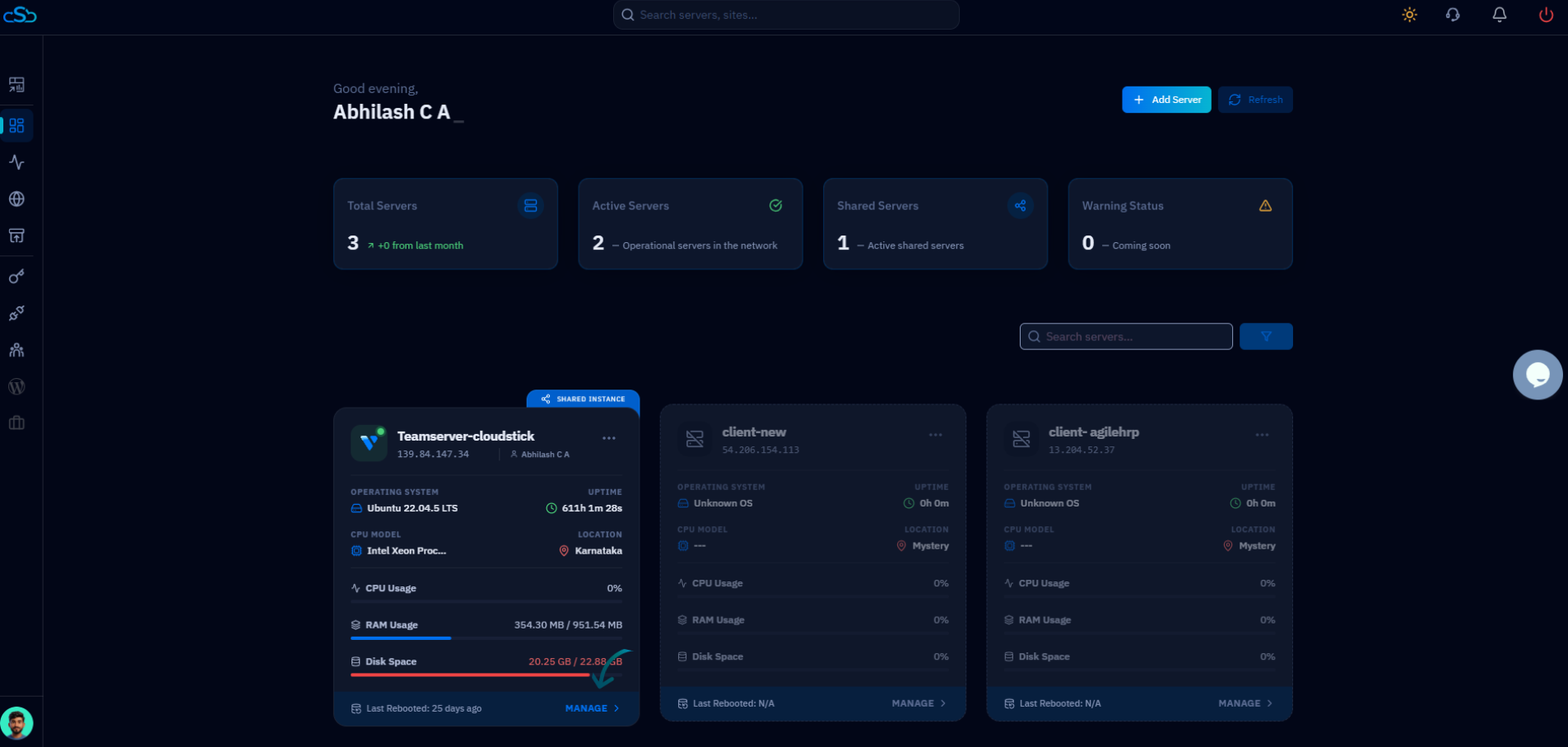
Fig. 01 — The CloudStick dashboard showing your connected servers; select the server that hosts your website.
Open Websites: From the left-hand navigation in the server panel, click Websites to view all hosted web applications on this server.
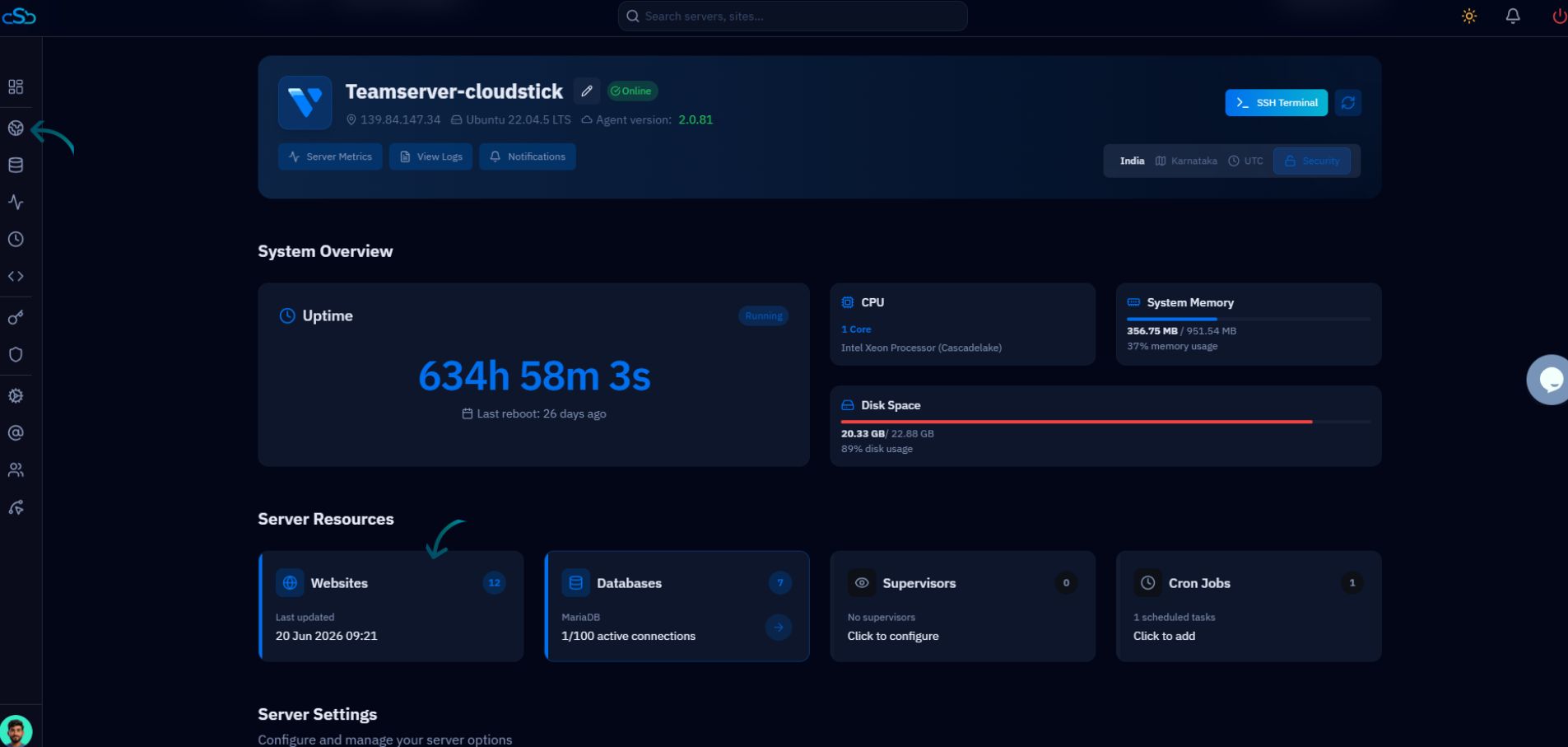
Fig. 02 — The server panel; open the Websites section from the left-hand navigation.
Select a website: Choose the website that contains the FTP account you want to delete to open its management view.
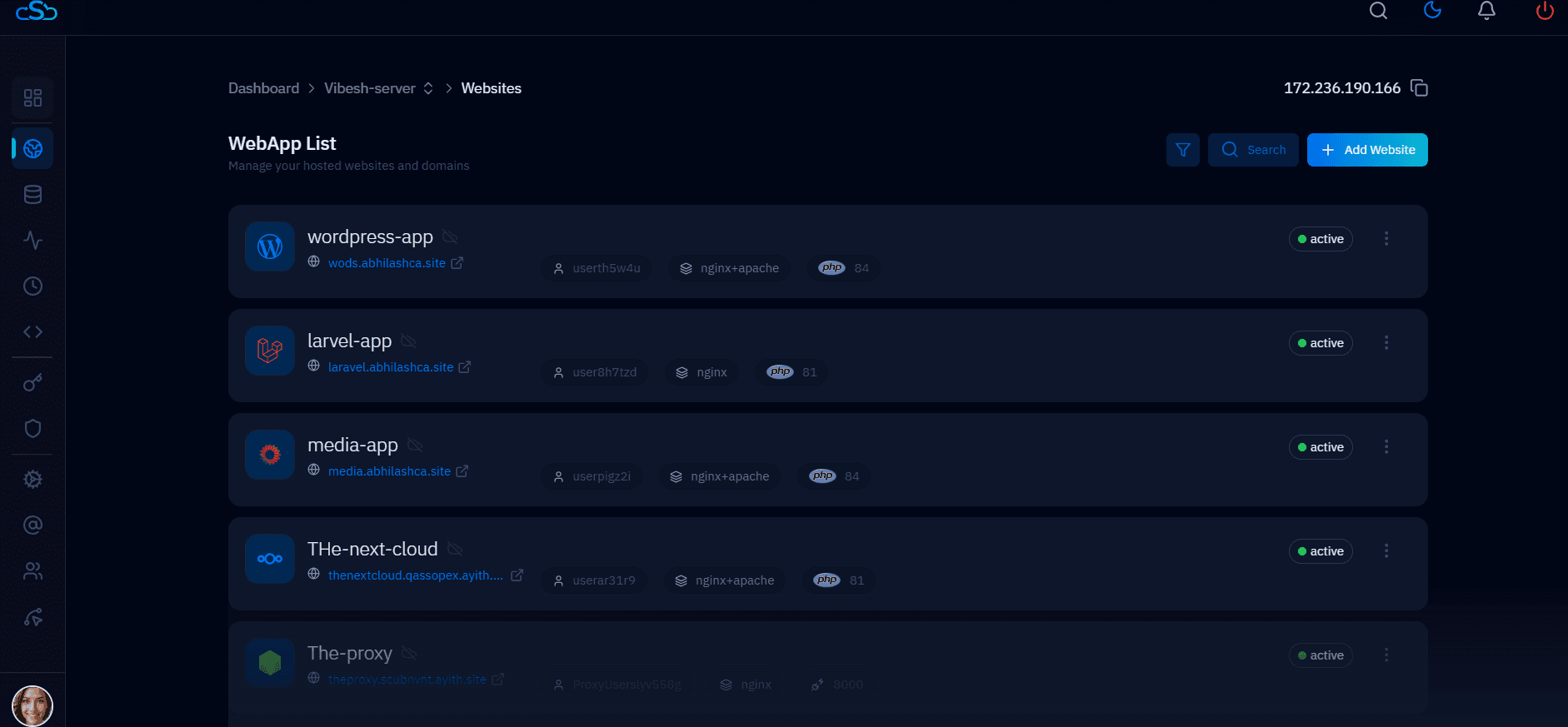
Fig. 03 — The WebApp List; click the website that contains the FTP account you want to delete.
Open FTP Accounts: At the top of the website management page, click the FTP Accounts tab.
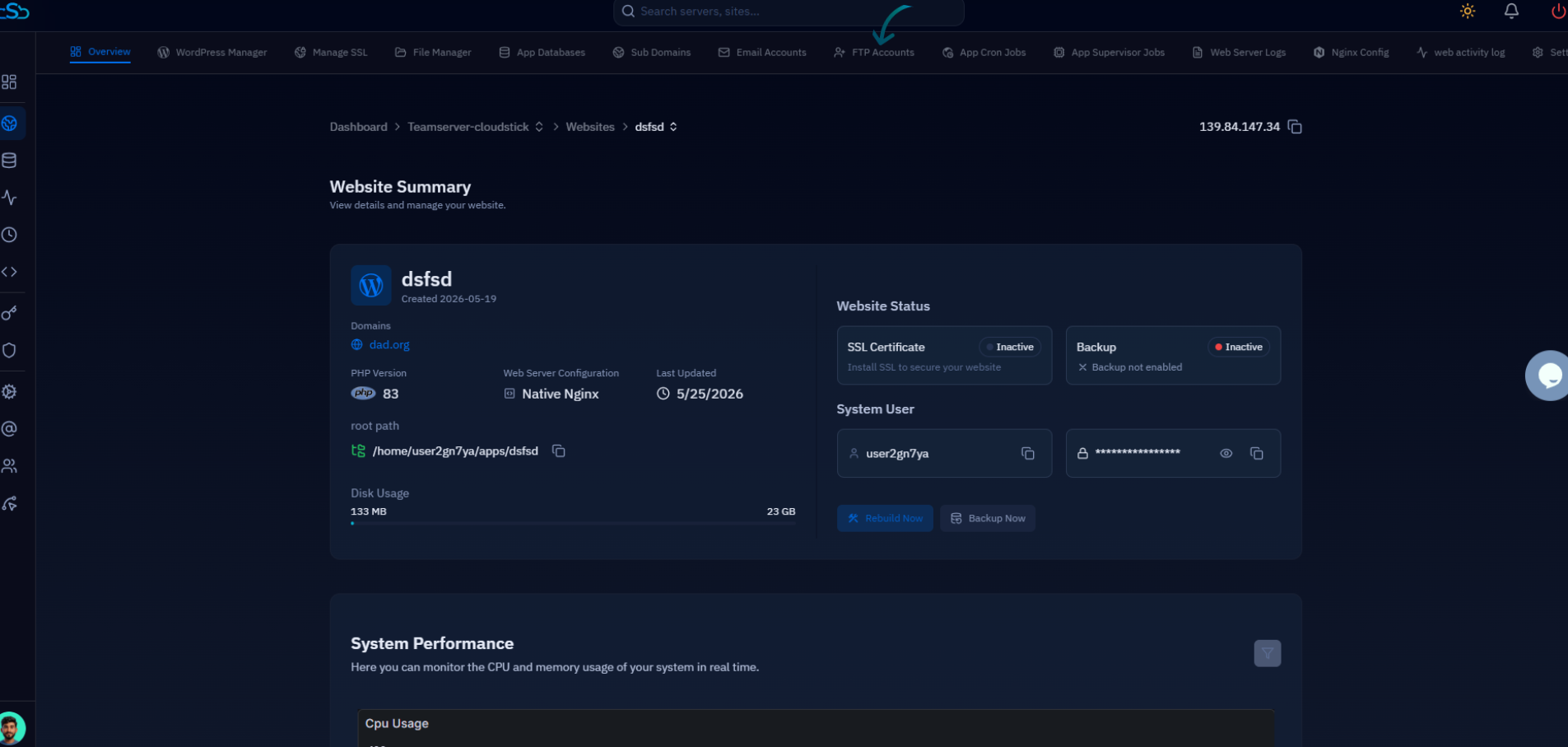
Fig. 04 — The website management page with the FTP Accounts tab in the top navigation.
Step 2: Locate the FTP Account
The FTP Accounts page lists every account that exists for this website, along with its directory path and quota. Find the one you intend to remove before taking any action.
Find the account: Scan the list of FTP accounts for the username you want to delete. If the list is long, use the search field at the top to filter by username or directory.
Double-check the Username and Directory Path so you remove the correct account.
Step 3: Delete the FTP Account
Each account row has an Actions menu that holds its management options, including deletion.
Open the Actions menu: Click the Actions (three-dot) menu next to the FTP account you want to remove.
Select Delete Account: From the available options, choose Delete Account. (The same menu also lets you Update Password or Update Quota if you only need to change the account rather than remove it.)
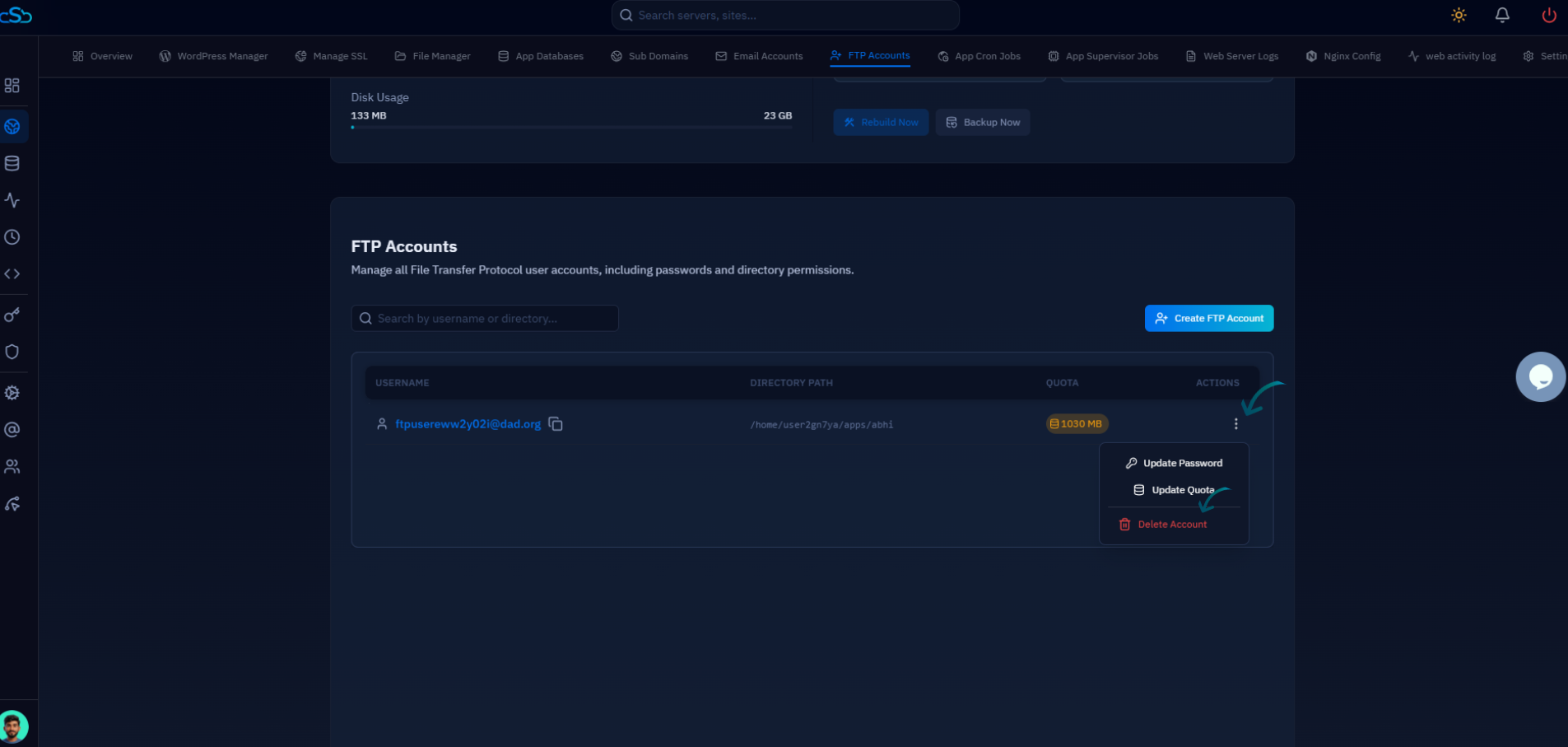
Fig. 05 — The FTP Accounts list with the Actions menu open, showing the Delete Account option.
The Actions menu also offers Update Password and Update Quota — use those if the account is still needed and you only want to rotate its credentials or adjust its storage limit.
Step 4: Confirm the Deletion
CloudStick asks you to confirm before permanently removing the account, so an accidental click won't revoke access on its own.
Confirm deletion: When the confirmation prompt appears, confirm that you want to delete the FTP account.
The FTP account is removed immediately and will no longer be able to access the website's files. The remaining accounts stay in the list unchanged.
The account is gone, but your website files are untouched — deleting an FTP account only removes that user's access, never the files or directories themselves.
If the deleted account was being used by an active integration, backup job, or deployment tool, update that tool with new credentials to avoid failed transfers. You can create a fresh account at any time from the same FTP Accounts page.