How to Download Website Files from File Manager in CloudStick
Overview
CloudStick's built-in File Manager lets you download any website file directly to your local machine — no FTP client, no SSH session, and no third-party tools required. This is useful when you need to inspect a configuration file, take a local copy of a script, or retrieve a specific asset for editing.
This guide walks you through navigating to the File Manager for your website and using the three-dot actions menu to download a file. You can also compress entire folders into a ZIP archive first if you need to download multiple files at once.
The Advanced File Manager is available on the Basic plan and above. Make sure your server is connected and the website is in an active state before following these steps.
Step 1: Log In and Select Your Server
Start from the CloudStick main dashboard, which lists all servers connected to your account.
1. Log in to your CloudStick account at app.cloudstick.io.
2. On the main dashboard, locate the server card that hosts your website. Each card shows the server name, IP address, OS, uptime, and resource usage.
3. Click "Manage" on the server card to open the server panel.
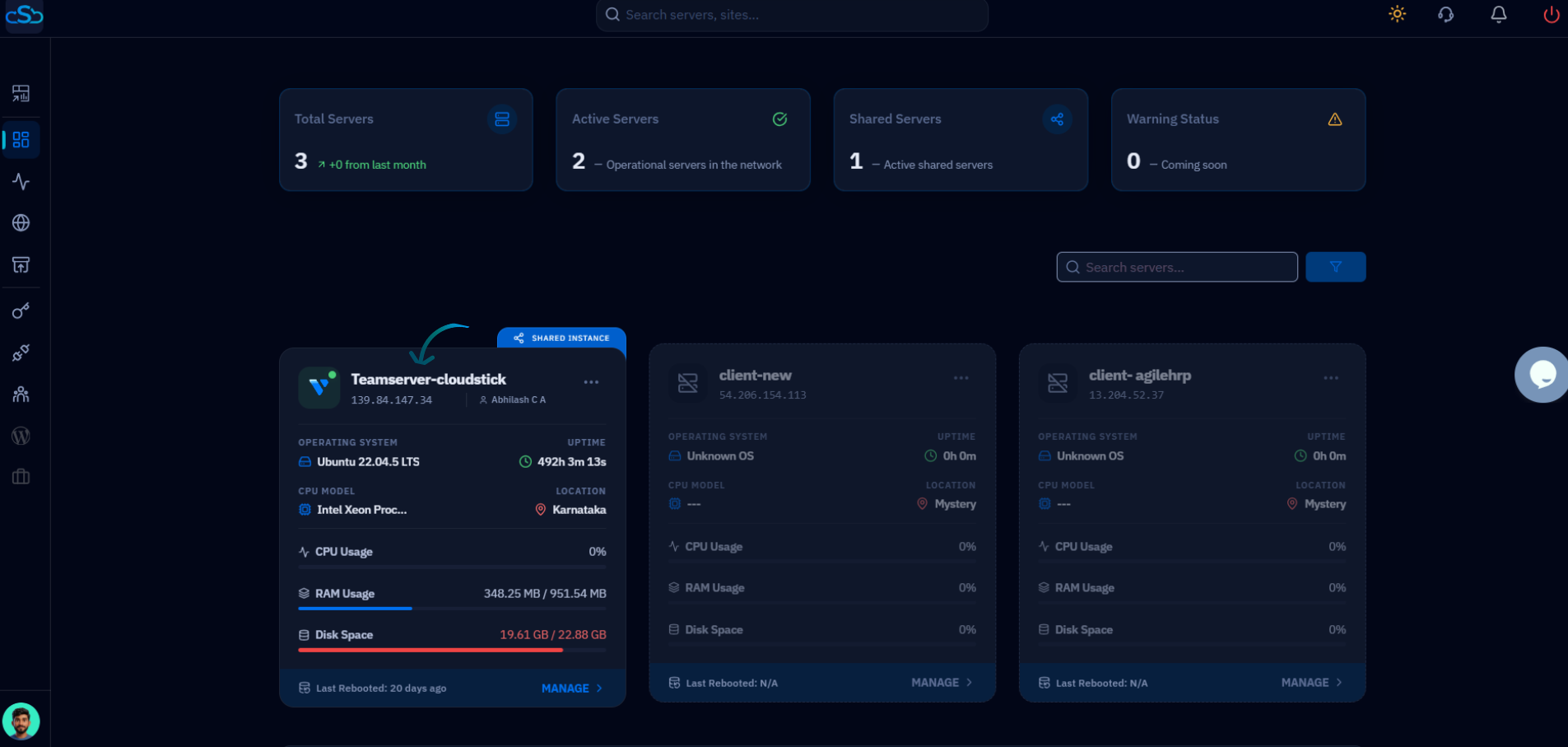
Fig. 01 — CloudStick main dashboard showing connected server cards with resource metrics and Manage buttons.
Step 2: Navigate to the Websites Section
Inside the server panel, locate the Websites resource to see all sites hosted on this server.
1. In the server panel, find the "Server Resources" section. It displays cards for Websites, Databases, Supervisors, and Cron Jobs.
2. Click the "Websites" card — or use the left-hand navigation — to open the WebApp List.
The Websites card shows the total count of active sites and when they were last updated.
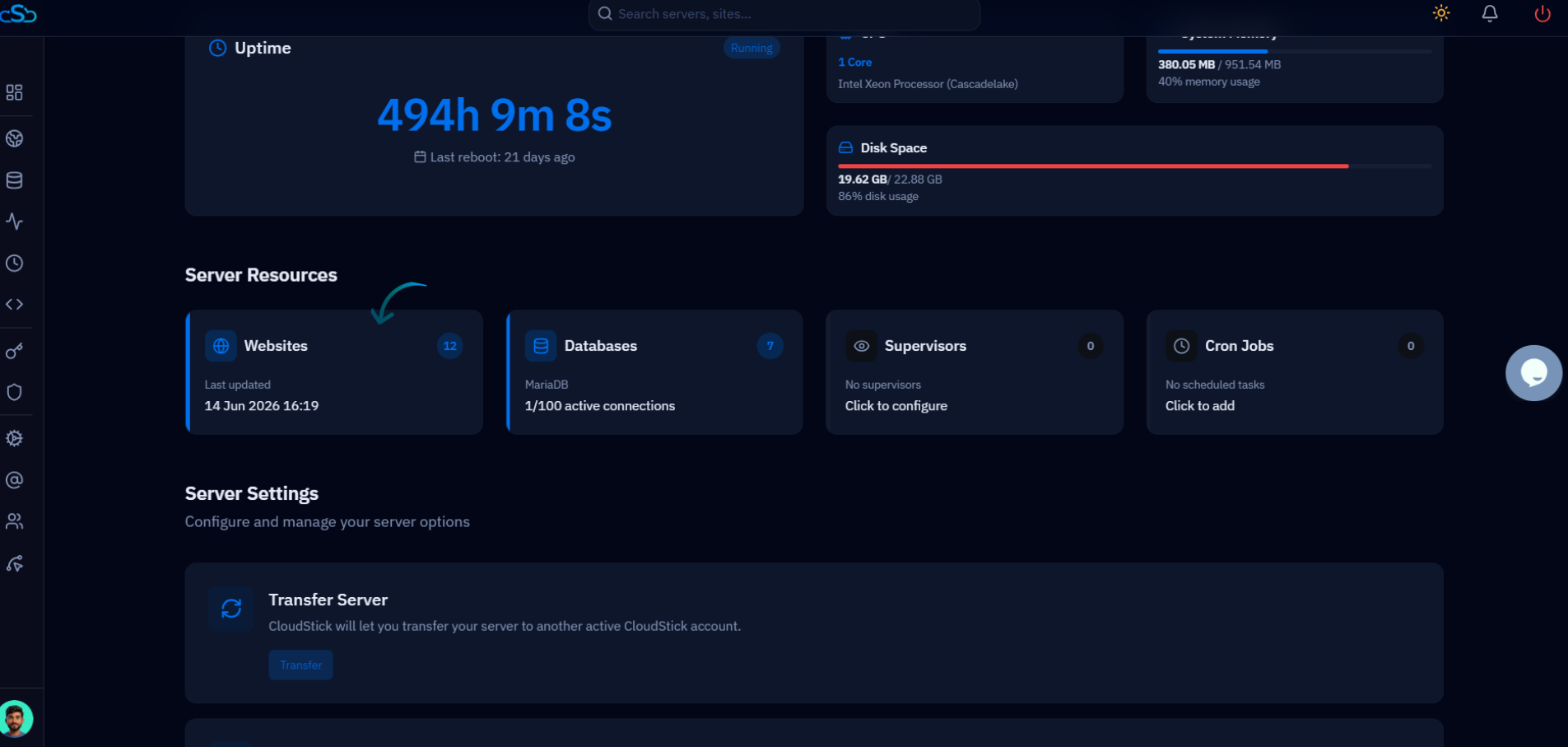
Fig. 02 — Server panel showing the Websites resource card under the Server Resources section.
Step 3: Select Your Website
The WebApp List shows every site hosted on the server. Click through to the specific website whose files you need to download.
1. Browse the WebApp List to find your website. Each entry shows the site name, domain, system user, web server (Nginx, OpenLiteSpeed, Nginx+Apache), PHP version, and disk usage.
2. Click on the website name to open its management page.
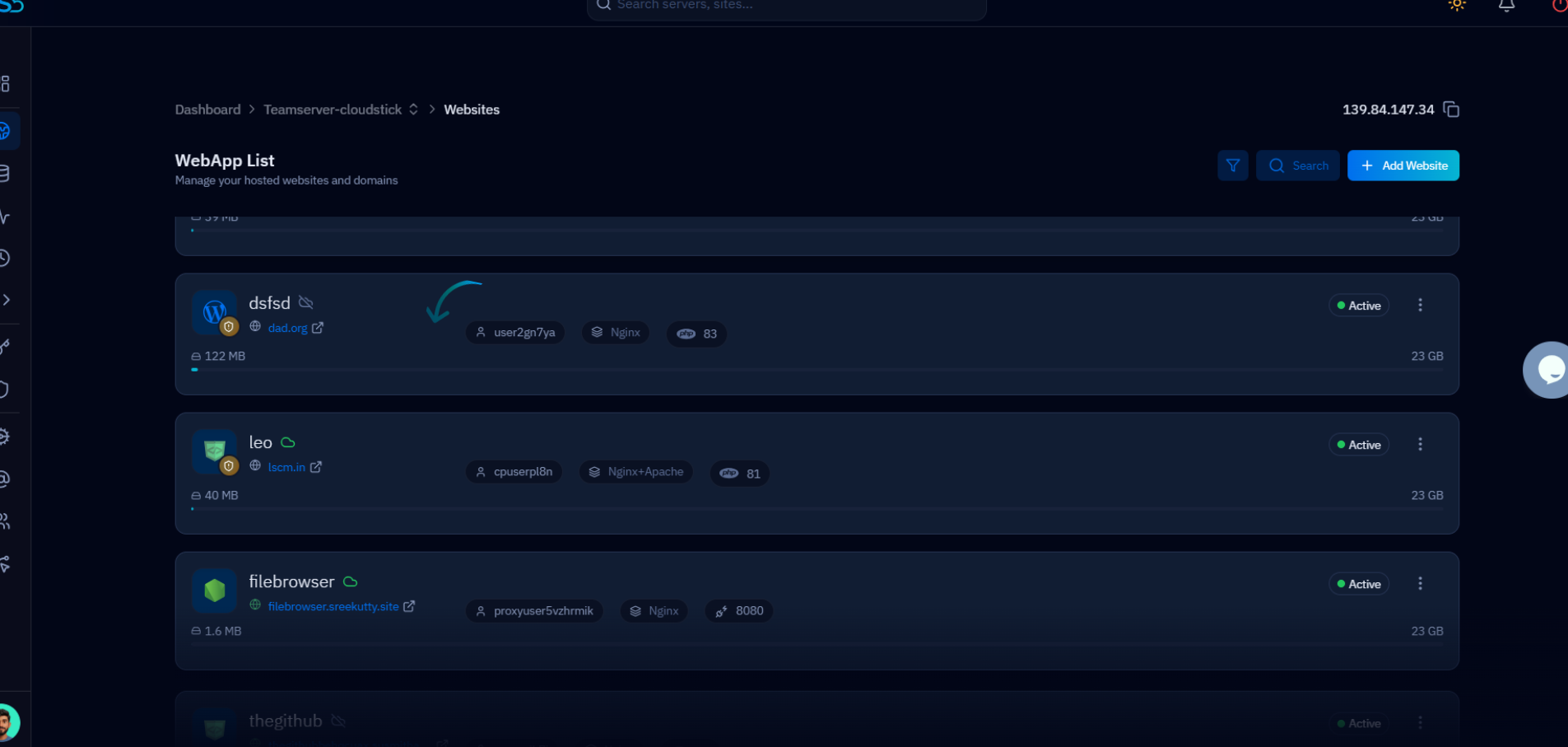
Fig. 03 — WebApp List displaying all hosted websites with their domain, system user, and web server details.
Step 4: Open the File Manager Tab
Once inside the website management page, switch to the File Manager tab to browse your website's directory.
1. In the top navigation bar of the website management page, click the "File Manager" tab.
2. The File Manager loads showing your website's root directory (e.g., /home/user/apps/yoursite). Files are listed with their name, size, permissions, and last modified date.
3. Navigate into subfolders by clicking on any folder name to browse deeper into the directory tree.
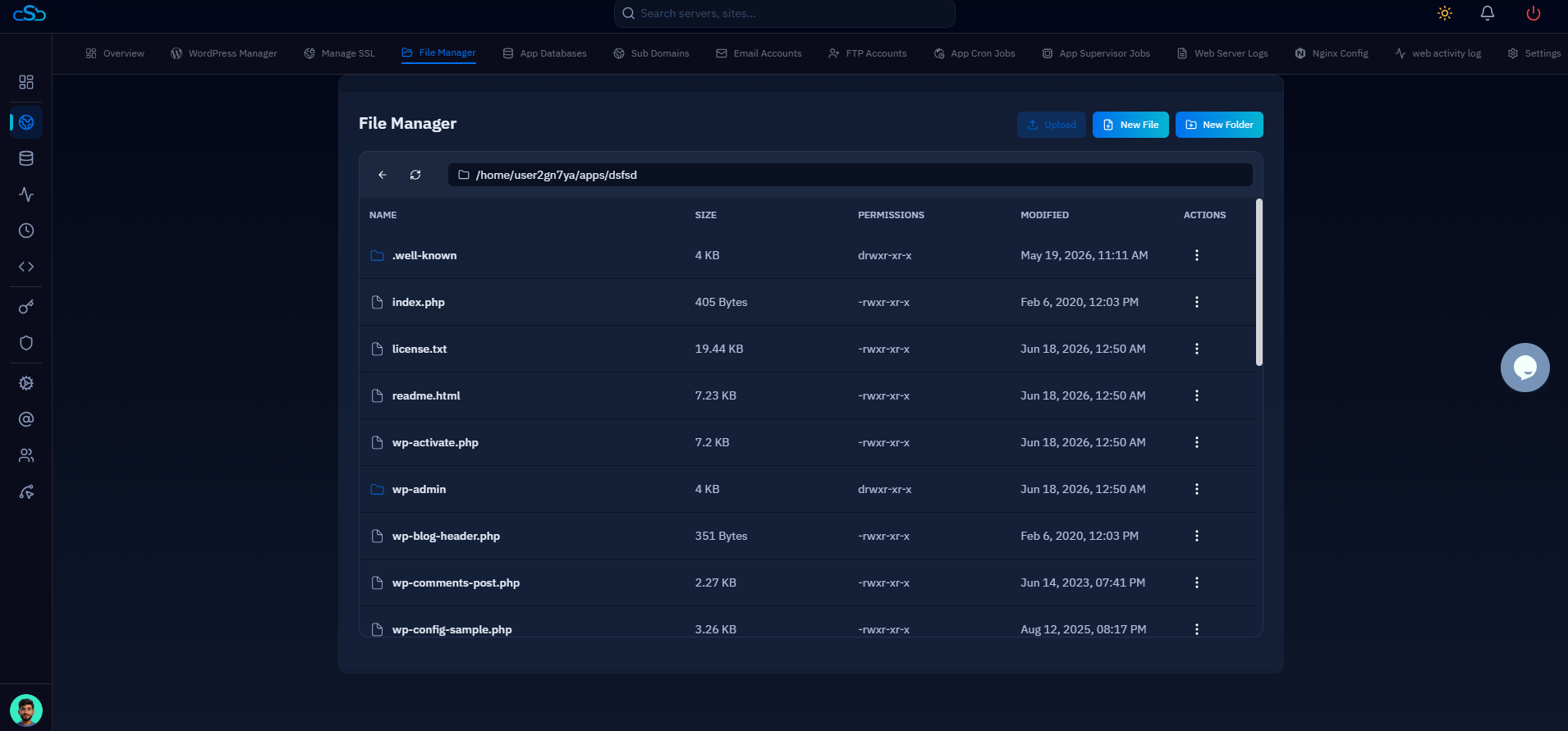
Fig. 04 — File Manager tab open, displaying website files with size, permissions, and last modified details.
Step 5: Locate and Download the File
Each file in the File Manager has a three-dot actions menu that gives you access to the Download option along with other file operations.
1. Locate the file you want to download by browsing or scrolling through the directory listing.
2. Click the three-dot menu (⋮) in the Actions column on the right side of the file row.
3. From the dropdown, select "Download File". The file will immediately begin downloading to your local system via your browser.
To download multiple files or a folder, use the Compress option first to create a ZIP, TAR, or TAR.GZ archive, then download the resulting archive file.
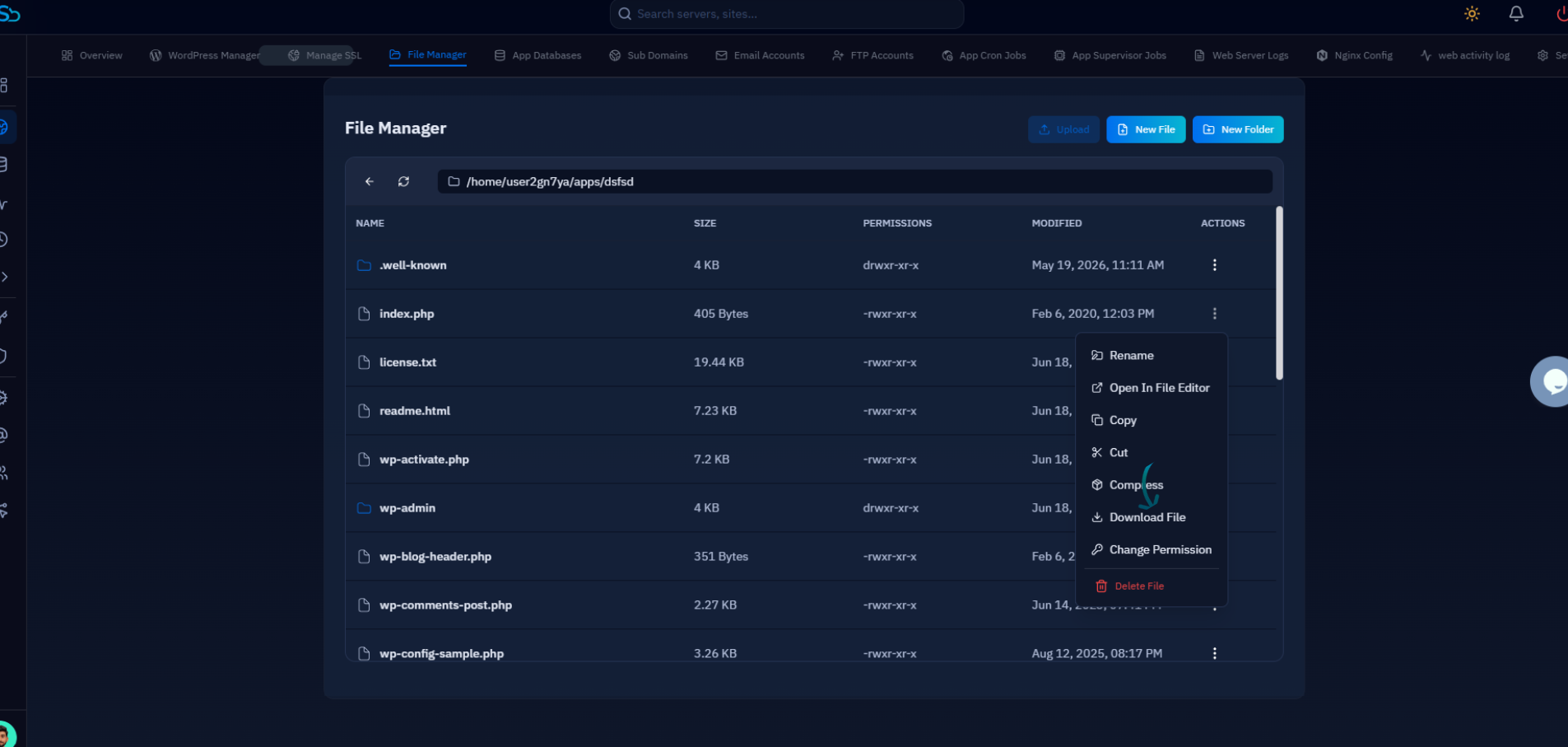
Fig. 05 — File Manager three-dot actions menu expanded, showing the Download File option alongside Rename, Copy, Cut, Compress, and Change Permission.