How to open a port in CloudStick server?
Overview
Opening a port on your server makes a specific service or application reachable from outside. By default, CloudStick servers are secured with CSF (ConfigServer Security & Firewall), which blocks all ports that are not explicitly permitted. This is intentional — a closed-by-default posture keeps your server protected from unauthorized access. When you need to expose a service (for example, a custom application on port 8080, a database listener on port 3306, or a mail server on port 25), you do so by adding it to the CSF allowed ports list.
This guide walks you through opening a port on a CloudStick server — from selecting your server in the dashboard through modifying the TCP_IN settings inside the Security section and saving the changes.
Only open ports that are required for specific, known services. Leaving unnecessary ports open increases your server's attack surface. If you need to grant a single IP temporary access on a port, consider using Temporary Firewall Rules instead — see the How do I add firewall rules? guide.
Step 1: Select Your Server
All firewall configuration is done inside the server panel. Start by navigating to the specific server you want to modify.
1. Log in to CloudStick: Go to app.cloudstick.io and sign in with your credentials.
2. Locate your server: On the main dashboard you will see all connected servers displayed as cards. Each card shows the server name, OS, uptime, CPU, memory, and disk usage at a glance.
3. Click Manage: Click the Manage → button on the server card you want to configure. This opens the server panel for that server.
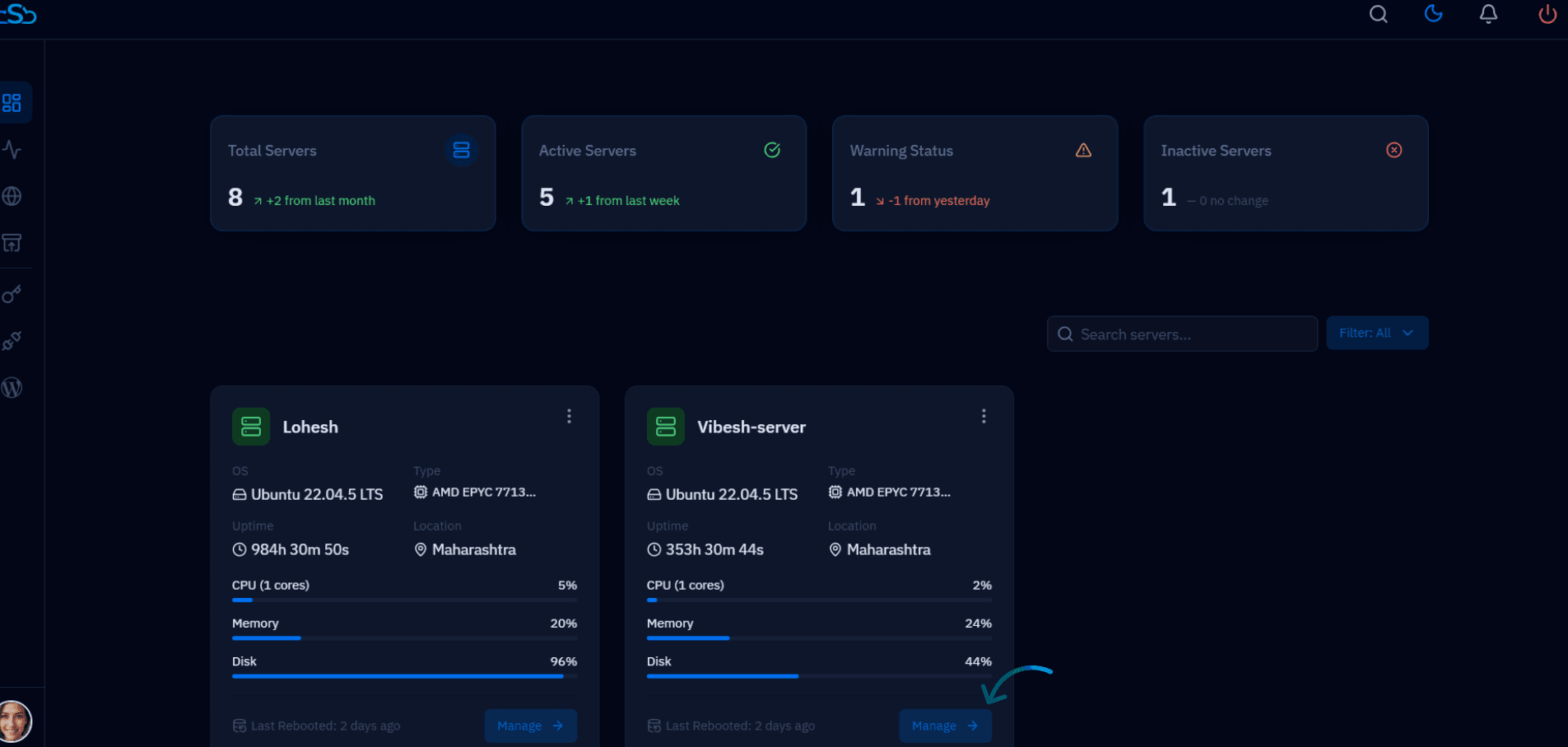
Fig. 01 — CloudStick dashboard showing connected servers. Click the Manage button on your target server to enter its panel.
Step 2: Navigate to Security Settings
Once inside the server panel, you need to open the Security section, which gives you access to CSF firewall configuration including the allowed ports list.
1. Locate the Security icon: In the left-hand navigation of the server panel, look for the shield icon labelled Security. It is the firewall management entry point for this server.
2. Click Security: Clicking the icon opens the full Security settings screen, which includes CSF configuration fields such as TCP_IN (allowed inbound TCP ports), TCP_OUT, UDP_IN, Temporary Rules, and Brute Force limits.
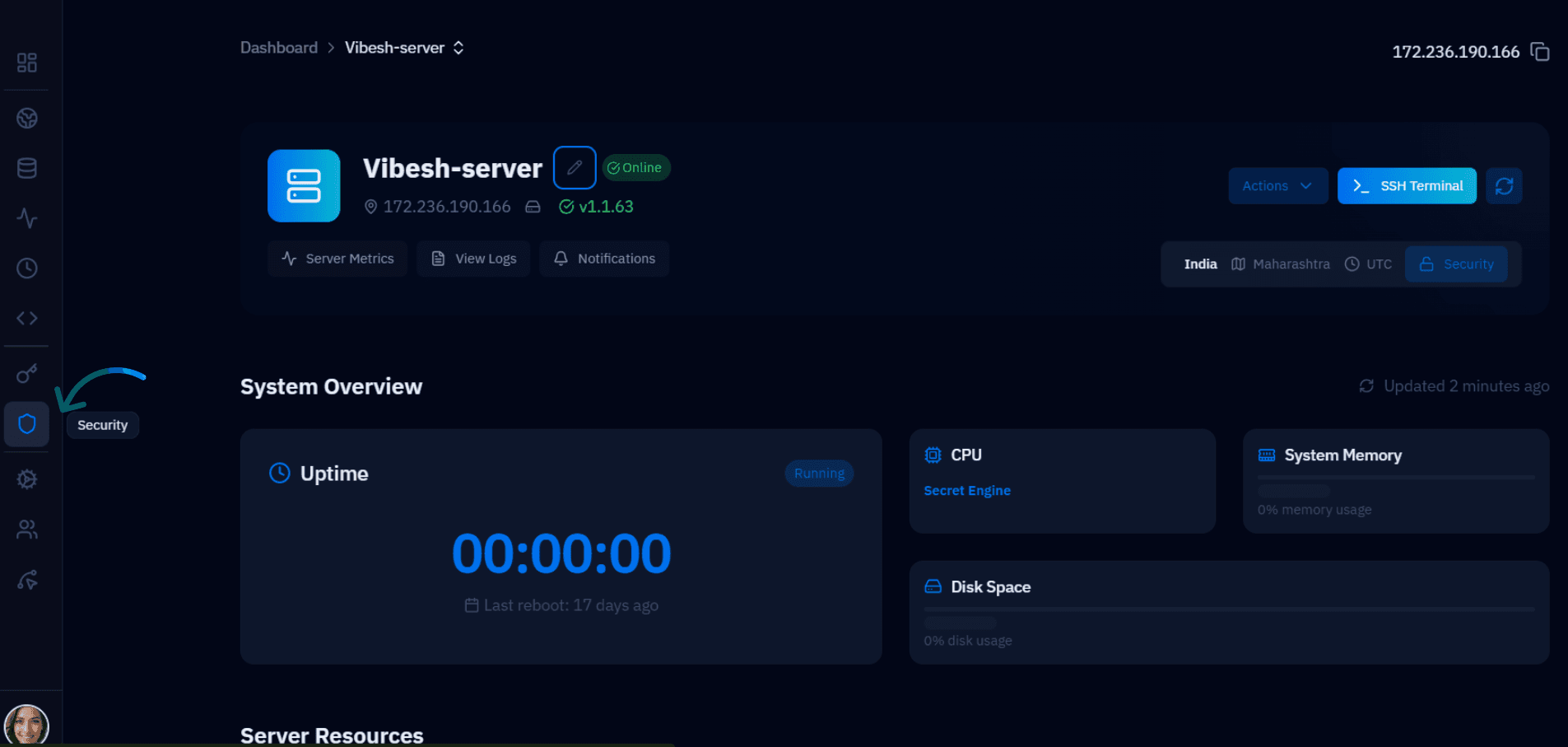
Fig. 02 — Server panel for Vibesh-server with the Security icon highlighted in the left-hand navigation.
The Security section is available on all connected servers. If you do not see it, ensure your server agent is up to date and the server status is Active.
Step 3: Add the Port to TCP_IN and Save
The TCP_IN field controls which inbound TCP ports are allowed through the CSF firewall. Adding a port here opens it globally — meaning any IP can reach that port unless you also apply IP-level restrictions.
Edit the TCP_IN Field
1. Scroll to TCP_IN: Inside the Security settings screen, scroll down to locate the TCP_IN field. It contains a comma-separated list of currently allowed ports (e.g., 20,21,22,25,53,80,110,143,443,465,587,993,995,2077,2078,2082,2083,2086,2087,2095,2096).
2. Add your port: Place your cursor at the end of the existing port list, type a comma, then enter the port number you want to open. For example, to allow traffic on port 8080, the field should end with: ...2096,8080
3. Open a port range (optional): To allow a continuous range of ports — for example ports 2082 through 2090 — use a colon as the range separator: 2082:2090. This is more efficient than listing each port individually.
Common Ports Reference
Port 80 — HTTP web traffic
Port 443 — HTTPS (SSL) web traffic
Port 3306 — MySQL / MariaDB database
Port 22 — SSH (already open by default)
Port 8080 — Common alternative HTTP port for custom apps
4. Save the changes: Click the Save button to apply the updated port list. CSF will reload its configuration and the port will become accessible immediately — no server restart is required.
If a service is still not accessible after opening the port, verify that the application itself is listening on that port (e.g., run netstat -tlnp | grep <port> via the SSH Terminal). A firewall rule allows traffic in, but the service must also be running and bound to that port.
Changes to TCP_IN apply globally — any IP can reach the newly opened port. If you need to restrict access to a specific IP address only, do not add the port to TCP_IN. Instead, use a Temporary Firewall Rule or a CSF Allow rule scoped to that IP and port.