How to Access SFTP Details for a Website
Overview
SFTP (SSH File Transfer Protocol) is the secure way to upload, download, and manage the files of a website over an encrypted connection. To connect with any SFTP client — such as FileZilla, WinSCP, or Cyberduck — you need the website's login credentials, the server address, and the correct port.
CloudStick exposes these details on each website's Website Summary page, so there is no need to dig through configuration files or open an SSH session. This guide shows you how to locate the Website User and Website Password for any site and combine them with your server's IP address and port 22 to connect over SFTP.
Prerequisites: A connected server with at least one website is required. Every CloudStick plan — including the FREE plan — supports SFTP access, so these credentials are available on all accounts.
Step 1: Log In and Select Your Server
SFTP credentials are scoped to an individual website, so you start from the dashboard and drill down to the server that hosts it.
Log in: Sign in to your CloudStick dashboard. The dashboard lists all of your connected servers.
Select your server: Click the server that hosts the website you want to connect to in order to open its server panel.
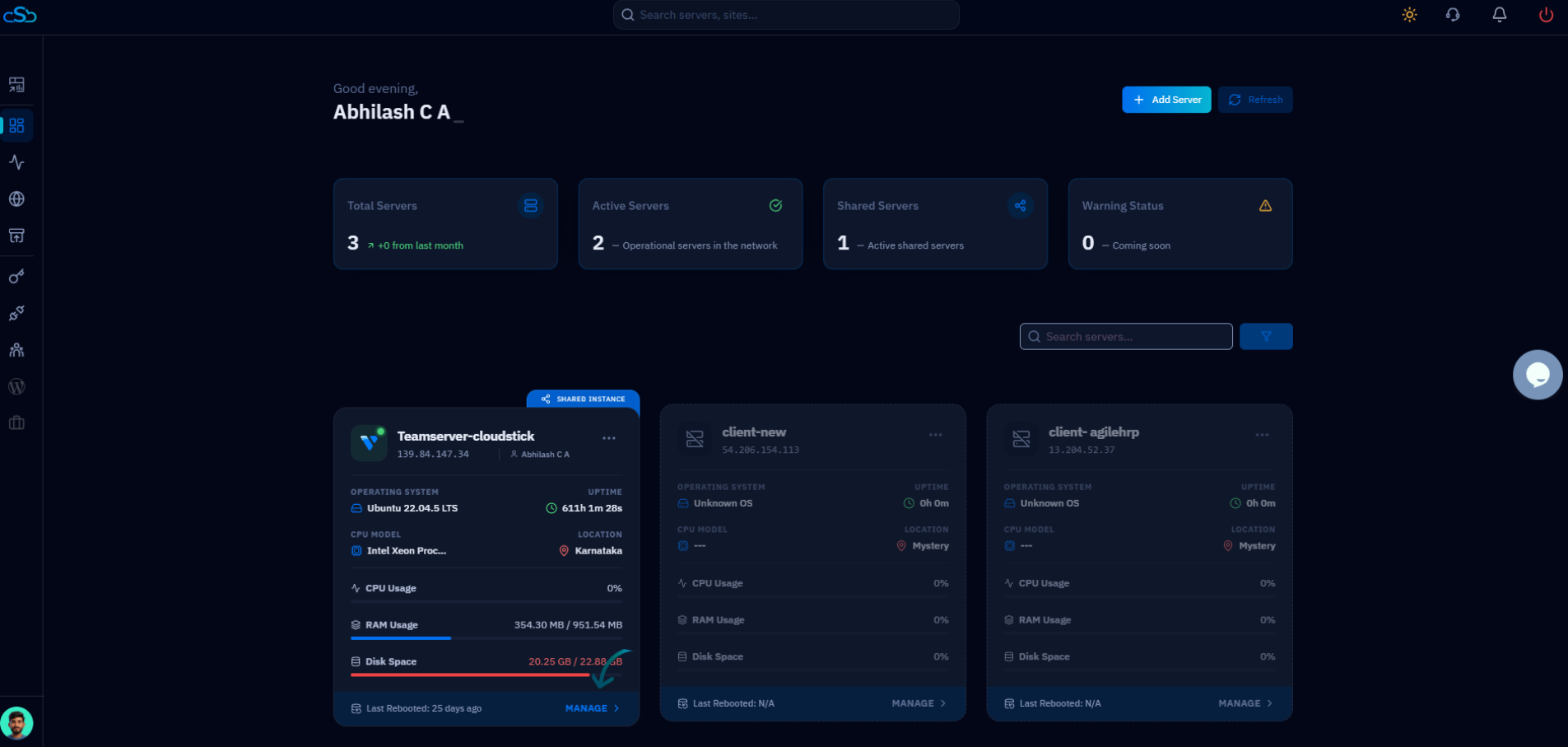
Fig. 01 — The CloudStick dashboard showing your connected servers; select the server that hosts your website.
Step 2: Open the Websites Section
The server panel groups everything hosted on that machine. From here, open the list of web applications.
Open Websites: From the left-hand navigation in the server panel, click Websites to view all of the web applications hosted on this server.
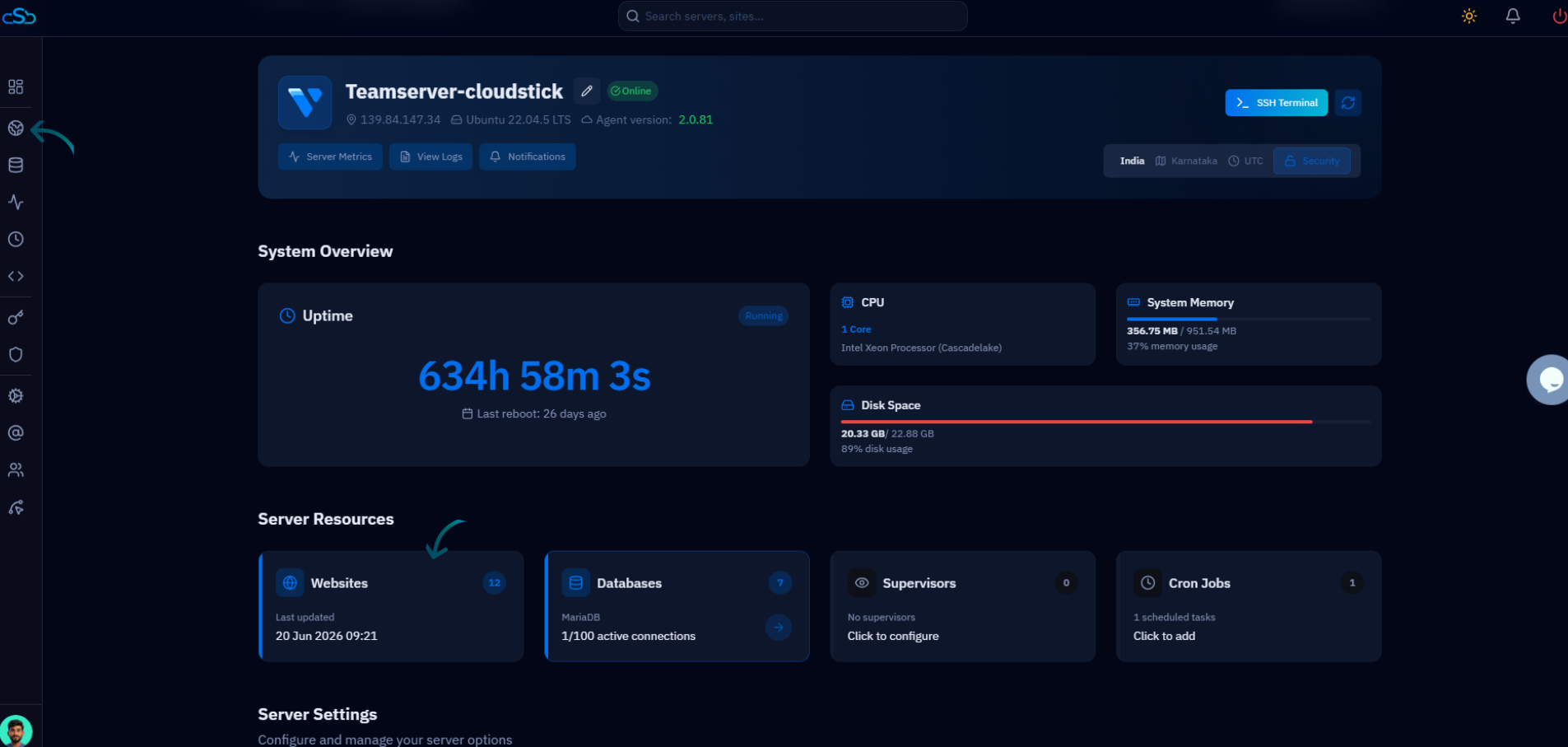
Fig. 02 — The server panel; open the Websites section from the left-hand navigation.
Step 3: Select a Website
The WebApp List shows every website on the server, along with its user, web stack, and PHP version.
Choose a website: Click the website for which you want to view the SFTP details to open its management view.
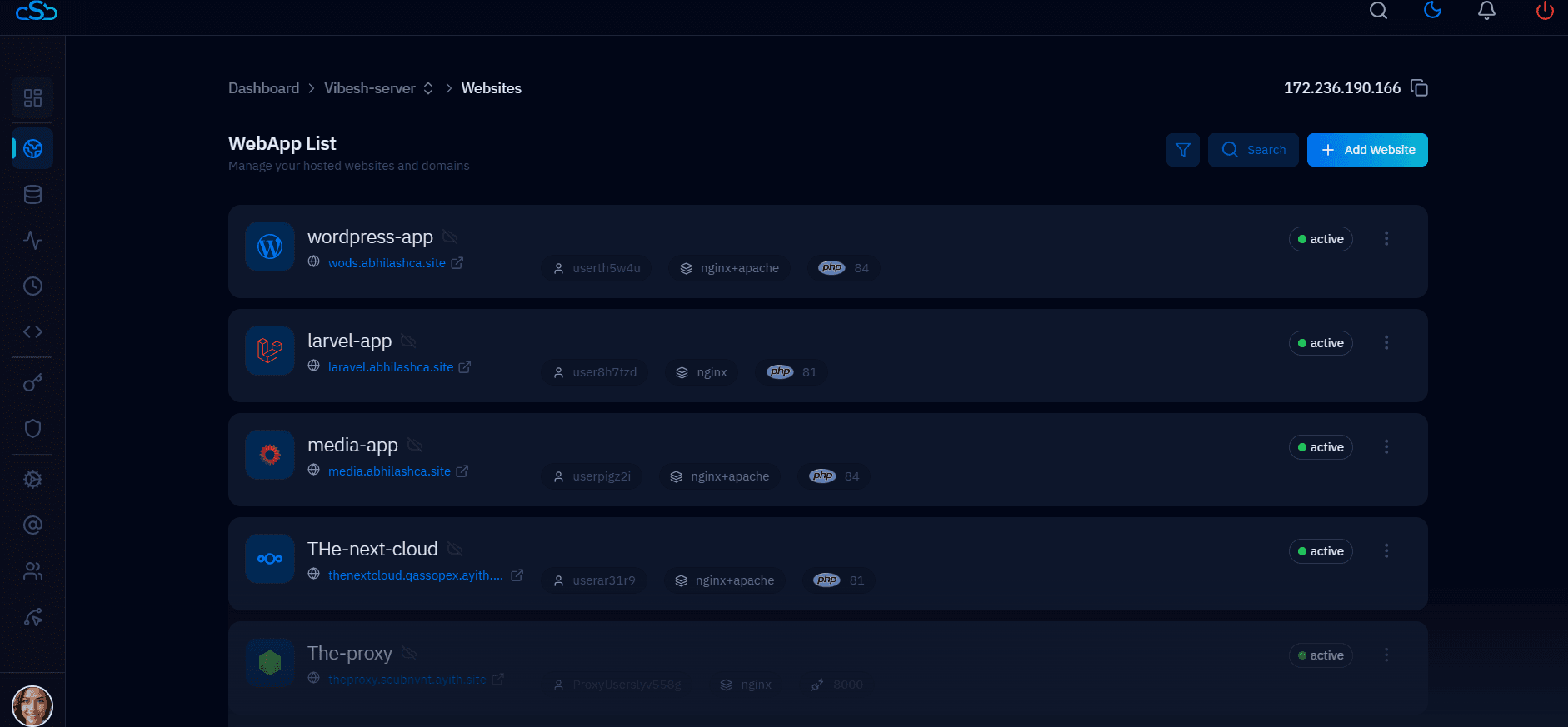
Fig. 03 — The WebApp List; click the website whose SFTP credentials you want to view.
Step 4: Open the Website Summary
Selecting a website takes you straight to its Website Summary page — the central overview of that site's configuration, status, and access details.
The Website Summary page displays the site's SSL certificate status, backup status, web server configuration, document root, and — most importantly here — the System User section that holds your SFTP login details.
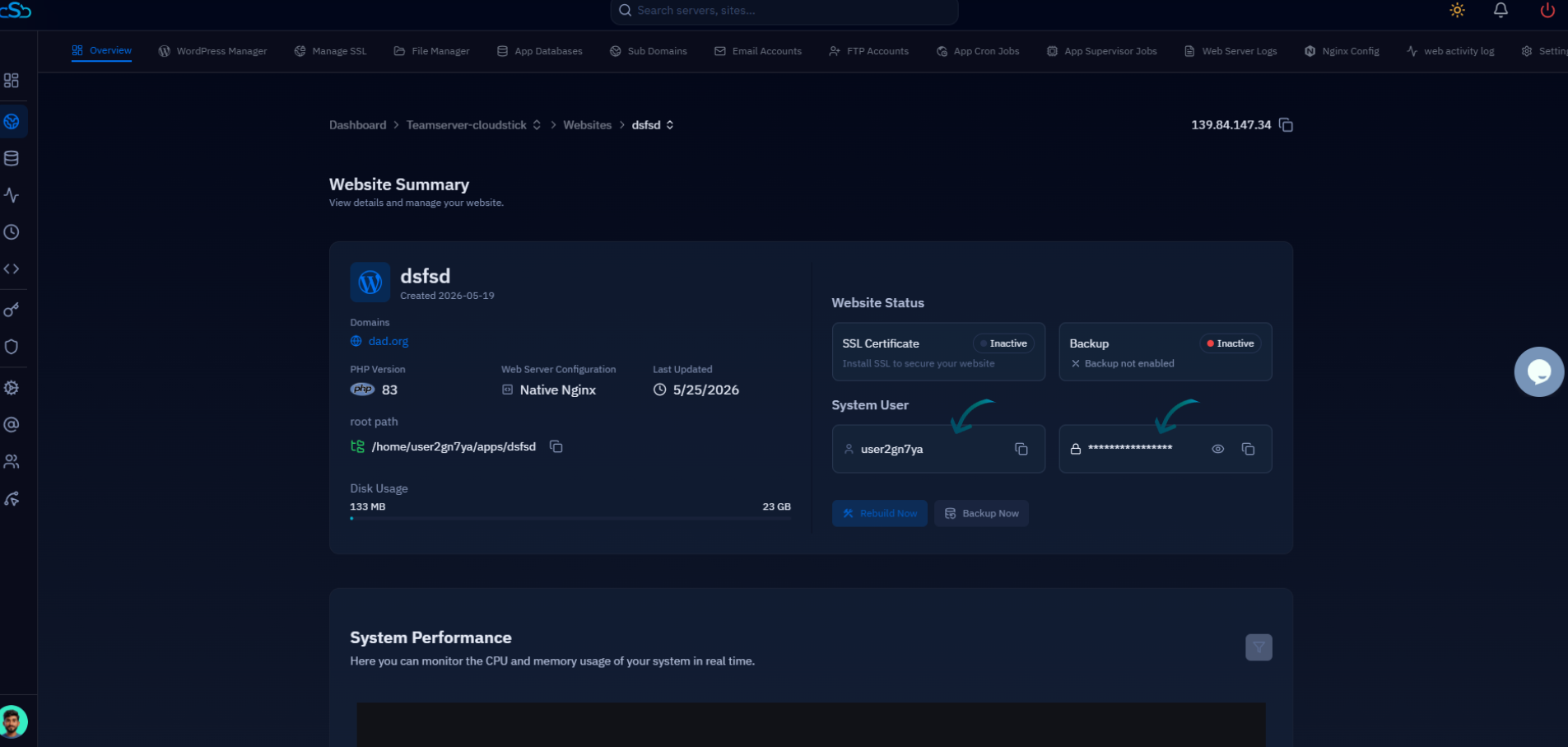
Fig. 04 — The Website Summary page; the System User section displays the website user and password used for SFTP.
Step 5: View Your SFTP Credentials
Within the Website Summary, the System User section lists the two values you need to authenticate over SFTP.
Website User: The system username assigned to this website. This is your SFTP username.
Website Password: The password for the website user. Use the reveal (eye) icon to display it, then copy it for your SFTP client.
Together these two credentials authenticate your connection to the website's files over SFTP.
If you do not know or want to rotate the password, you can update the website password from the website management page — the new value applies immediately to SFTP logins.
Step 6: Connect Using Port 22
With your credentials in hand, configure your SFTP client. CloudStick uses the standard SSH/SFTP port, so the connection settings are straightforward.
Host: Your server's IP address.
Username: The Website User from the Website Summary page.
Password: The Website Password from the Website Summary page.
Port: 22
Enter these values into any SFTP client (such as FileZilla, WinSCP, or Cyberduck) and connect. You will land directly in the website's file structure, ready to upload or download files.
Keep your SFTP credentials secure and do not share them with unauthorized users. If a connection times out, confirm that your server firewall allows traffic on port 22 — a blocked port, rather than wrong credentials, is the most common cause of failed SFTP connections.